Ray


Overview
Overview
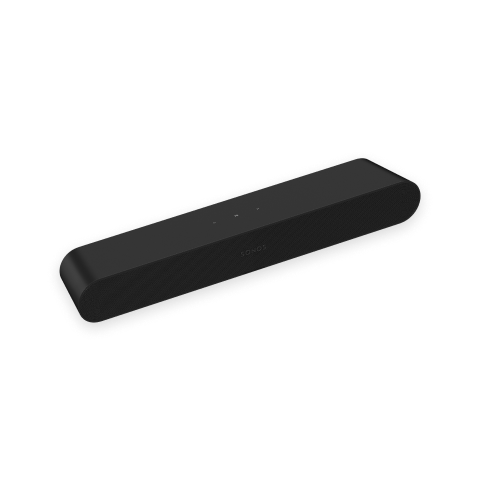
The versatile soundbar for your business—
- Effortless setup with just two cables.
- Stream music when the TV is off.
- Great sound for compact spaces—versatile design allows you to set it on a credenza, mount it on a wall, or place it inside a TV stand.
- Control your Sonos Pro system using the Sonos S2 app or the dashboard.
- See Getting Started when you’re ready to add Sonos Ray to your Sonos Pro system.
Controls and lights
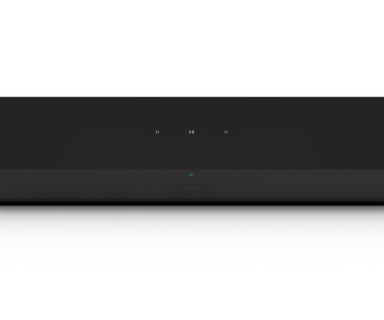 | Status light | Displays the product's connection to WiFi, indicates when the volume is muted, and signals errors. Learn more |
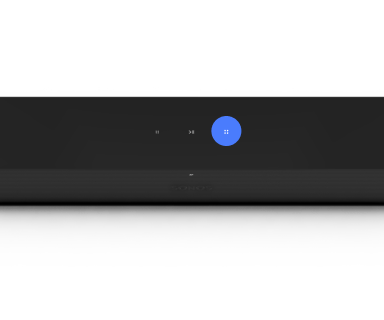 | Volume control | |
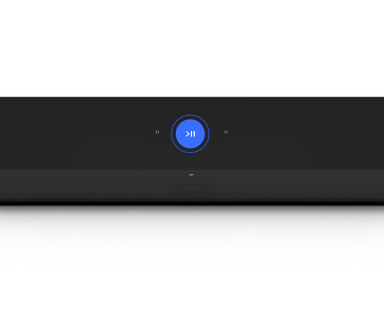 | Play/Pause |
|
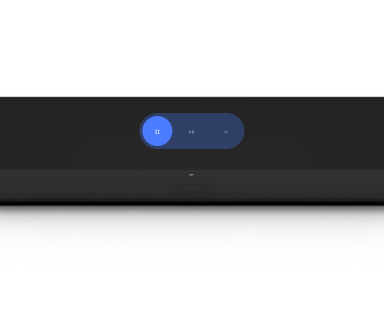 | Next/Previous |
Note: You can’t skip forward or go back when listening to a radio station. |
Note: If you don’t want to allow playback or volume adjustments using the speaker touch controls, you can disable them in the Sonos app.
Connector panel
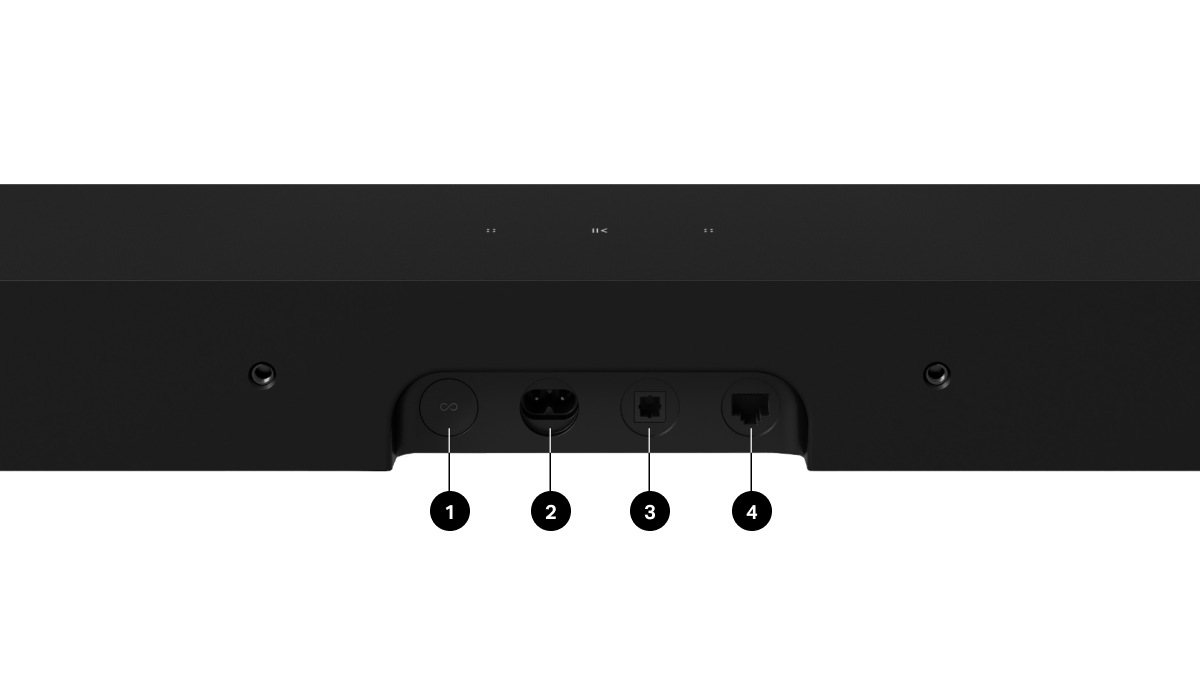
1 | Join button | Press to connect during setup. |
2 | AC power (mains) input | Use only the supplied power cord (using a third-party power cord will void your warranty). |
3 | Optical port | Use to connect the soundbar to your TV. |
4 | Ethernet port | Use an Ethernet cable if you want to connect to a router, computer, or network-attached storage (NAS) device (optional). |
Select a location
You can wall mount Ray above or below your TV, or place it in or on a TV stand.
TV stand placement
- Place horizontally on a stable and level surface at least 2" (5 cm) from the TV.
- Don’t place vertically or on its side.
- If put on a shelf, place at the front and keep 2" (5 cm minimum) clearance on both sides for best sound quality.
- Keep 1" (2.5 cm minimum) above Ray so you can reach the touch controls. For best sound quality, keep both ends of Ray at least 1" (2.5 cm) from a wall or other obstruction.
- Make sure the touch controls are facing up.
Wall mount
You can secure the soundbar to a wall with a compatible wall mount. We recommend the custom-designed Sonos Ray Wall Mount (sold separately). See Wall mount for more information.
Connect the cables
Before you start
- Disconnect existing home theater or surround sound equipment from your TV.
- Connect any external devices, like a cable box or DVD player, directly to your TV.
- Turn your TV on.
1 | Connect the power cord and plug in the Sonos Ray. Note: Use only the supplied power cord (using a third-party power cord will void your warranty). | 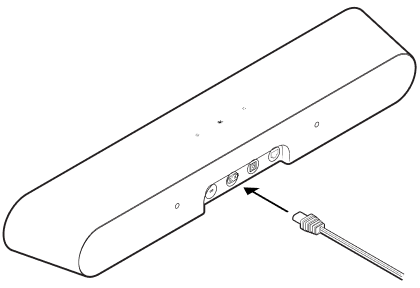 |
2 | Remove the protective cap, then connect the optical cable (included) to the optical port on the back of your soundbar. | 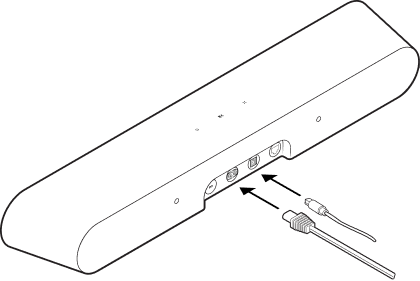 |
3 | Remove the protective cap, then connect the optical cable to your TV's optical digital OUT port. | 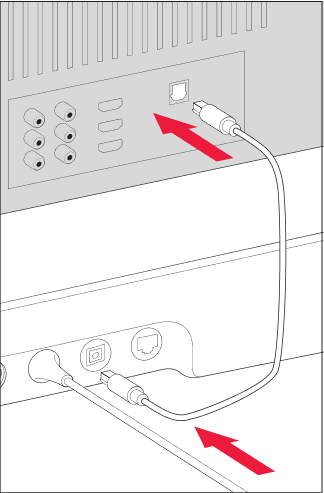 |
Trueplay™
Trueplay tuning measures how sound reflects off walls, counters, and other surfaces in an area, then fine tunes the Sonos speakers to make sure they sound great no matter where they're placed.
During setup, choose the Trueplay option that works best for your space. To retune later:
- Go to Settings
 .
. - Choose a product.
- Select Trueplay.
Note: If VoiceOver is enabled on your iOS device, Trueplay tuning isn’t available. Turn it off in your device settings before tuning your speakers.
Advanced Tuning
Advanced tuning is custom and precise. It takes about 5 minutes and uses the microphone on an iOS device (running iOS 8 or later) so you'll move around the room while the sound is fine tuned for your space.
Note: Advanced tuning is the best choice for larger areas (larger open spaces may experience less precise tuning).
Quick Tuning
Quick tuning is fast, effortless, and accessible. It takes about a minute and uses the microphone on your Sonos product to detect the environment so there's no need to move around during tuning.
Note: Quick Tuning is available for both iOS and Android, and is a good choice for smaller areas, or spaces where it's difficult to move easily.
Product settings
You can customize Sonos products using the Sonos app.
- Go to Settings .
- Select a product.
| FEATURE | DESCRIPTION |
|---|---|
Product Name | If you move your speaker to a new spot, you can change its name in Settings. |
EQ | Sonos products ship with preset equalization settings. You can change the sound settings (bass, treble, balance, or loudness) to suit your personal preferences. Learn more |
Trueplay | Trueplay adapts the sound for your surroundings and content. Portable products can tune themselves automatically. Learn more |
Volume Limit | You can set a maximum volume for each product or set. Learn more |
Battery Saver (portable products only) | Set your portable speaker to power off automatically instead of going to sleep. It won't appear in the Sonos app until it’s powered back on. |
Line-In (Enable in Global Settings) | When a projector, turntable, stereo, or other audio device is connected to a Sonos product, you can adjust these line-in settings:
|
Idle Auto-Disconnect | When enabled, the speaker automatically disconnects from Bluetooth after 30 minutes of inactivity, only when it's also connected to WiFi. |
Status Light | Displays the speaker’s connection to WiFi, indicates when the volume is muted, and signals errors. Learn more |
Touch Controls | You can disable the touch control on your speaker. Do this to prevent accidental playback or volume adjustments (recommended for Sonos Pro users). Learn more Note: This setting also turns off Sonos Roam's controls. |
Turn off WiFi (not available for portable products) | You can turn off your speaker’s WiFi when it’s connected to your network with an Ethernet cable. This reduces power consumption and can improve connectivity for some wired speakers. |
Home theater
Home theater settings
Use the Sonos app to adjust product settings or change how your speakers work together.
TV Dialog Sync | Adjust audio delay (lip sync) when the TV audio and video are out of sync. Learn more |
Group Audio Delay | Adjust audio delay when grouped speakers' audio is out of sync. Learn more |
TV Autoplay | TV Autoplay—if music or other content is playing when you turn on your TV, the audio automatically switches to TV audio (default). Ungroup on Autoplay—if your soundbar is grouped with other products when you turn on the TV, it automatically drops from the group (default). |
Speech enhancement | Makes TV dialog easier to hear. Learn more |
Night sound | Enhances quiet sounds and reduces the intensity of loud sounds. Turn on to reduce the volume while still experiencing proper balance and range. Learn more |
Remote Control Setup | During setup, you’ll program a remote control. You can program a different remote control any time. Learn more |
Set up surround speakers
If you have a soundbar in your Sonos system, you can turn two speakers of the same type (i.e. a pair of Ones or a One and a One SL), or a Sonos Amp and two non-Sonos speakers, into separate right and left channels.
- Angle each surrounds towards the listening area (Sonos recommends about 10 feet from a listening position).
- Go to
 > System.
 - Select a zone with a soundbar and choose Add Surrounds to get started.
Note: If you group the rooms or create a stereo pair instead, you won't have surround sound.
Surround audio settings
During setup, surround sound is optimized for your area. These settings are adjustable:
Surrounds | Turn surround sound On or Off. |
TV Level | Adjust surround volume for TV audio. |
Music Level | Adjust surround volume for music. |
Music Playback | Ambient (subtle) or Full (louder, full range). Doesn't apply to Dolby Atmos Music playback. |
Accessories
Find the perfect accessory for your Sonos system—tailored to perfectly fit your Sonos products.
For a full selection of Sonos-compatible stands, wall mounts, chargers and cables, see Accessories on our website.
Wall mount
Use the Sonos Ray wall mount kit (sold separately, available at sonos.com). It’s designed for mounting on a flat wall.
Guidelines
- Leave enough space between Sonos Ray and your TV so you can reach Ray’s touch controls.
- For best sound quality, keep both ends of Ray at least 1' (30 cm) from a wall or other obstruction.
Mount kit contents
- Wall mount bracket
- 2 short attachment screws
- 2 wall anchors
- 2 wall screws
What you’ll need
- Pencil
- Phillips-head screwdriver
- Power drill (if needed for installation location)
- Measurement tool
- Level
- Stud finder (optional)
| Wall mount | Pre-drill | Use wall anchors | Use screws |
|---|---|---|---|
Wood stud | 1/8” / 3 mm bit | No | Yes |
Drywall (no stud) | 5/16” / 8 mm bit | Yes | Yes |
Hard wallboard or double board | 5/16” / 8 mm bit | Yes | Yes |
Plaster | 5/16” / 8 mm bit | Yes | Yes |
Concrete or brick | 5/16” / 8 mm bit | Yes | Yes |
Set it up
1 | If your TV is wall-mounted, align the top edge of the bracket with the bottom of your TV, leaving at least 2.5" (6.4 cm) between them. | 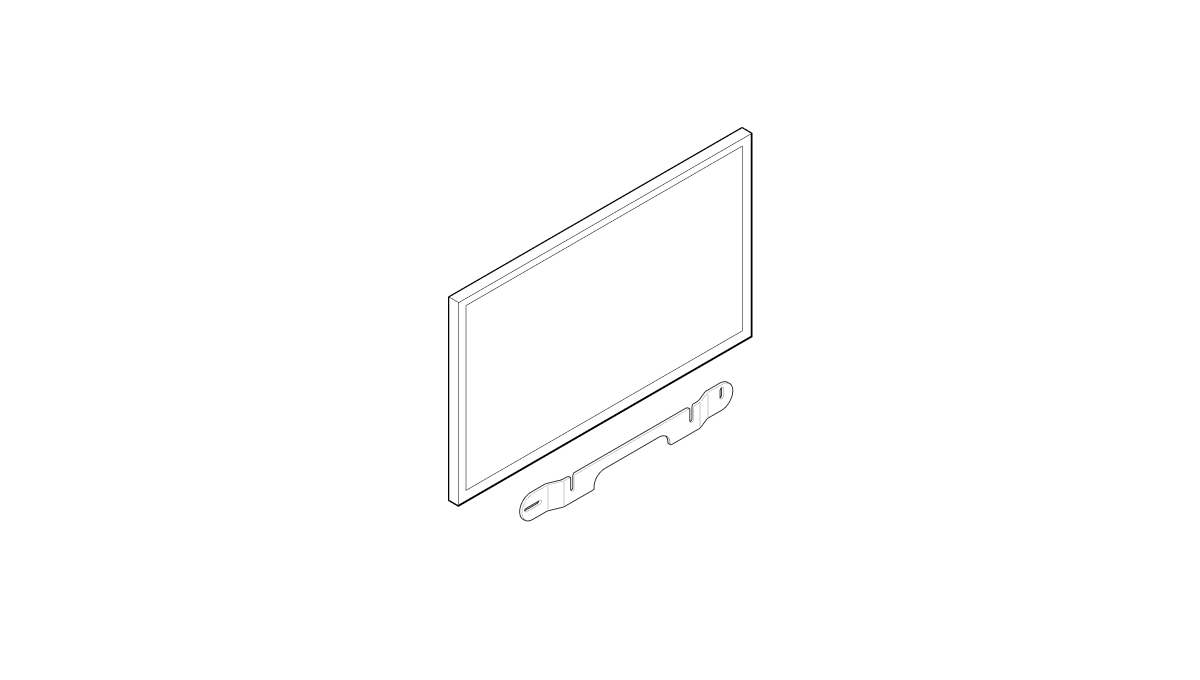 |
2 | Mark the screw locations and remove the bracket. | 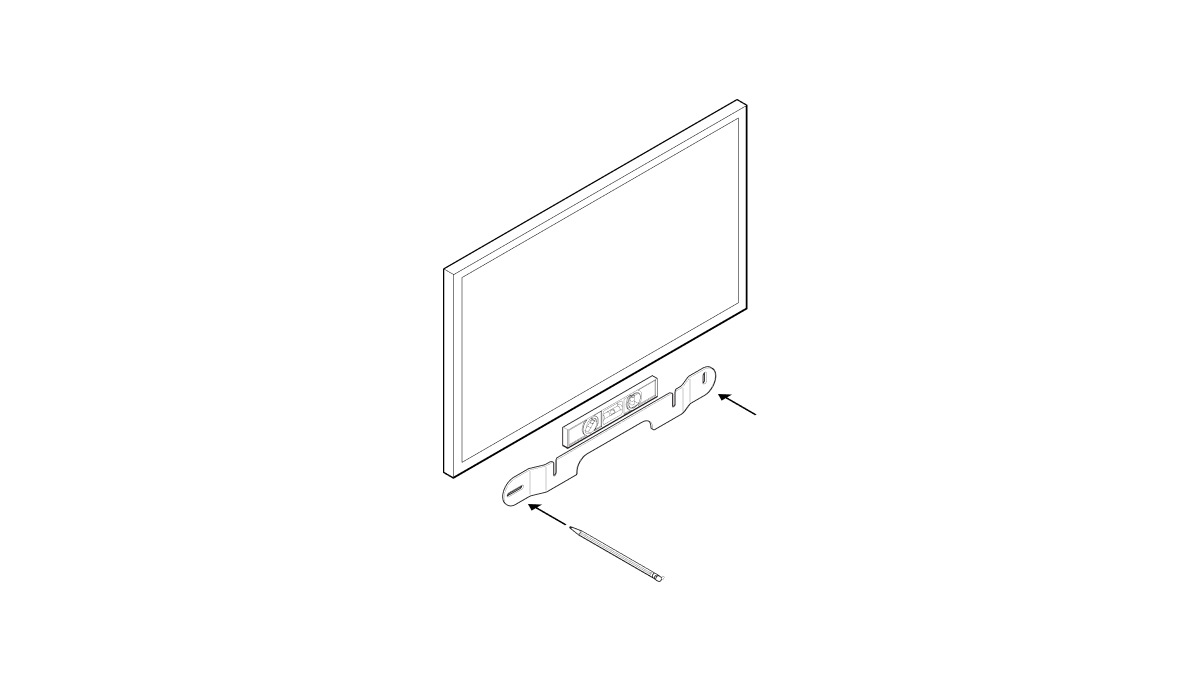 |
3 | If you’re using wall anchors, use a 5/16" drill bit to drill pilot holes, starting with the hole on the left. Then insert the wall anchors. Don’t use wall anchors if you’re drilling into wood or plastic. See Wall mounting information. | 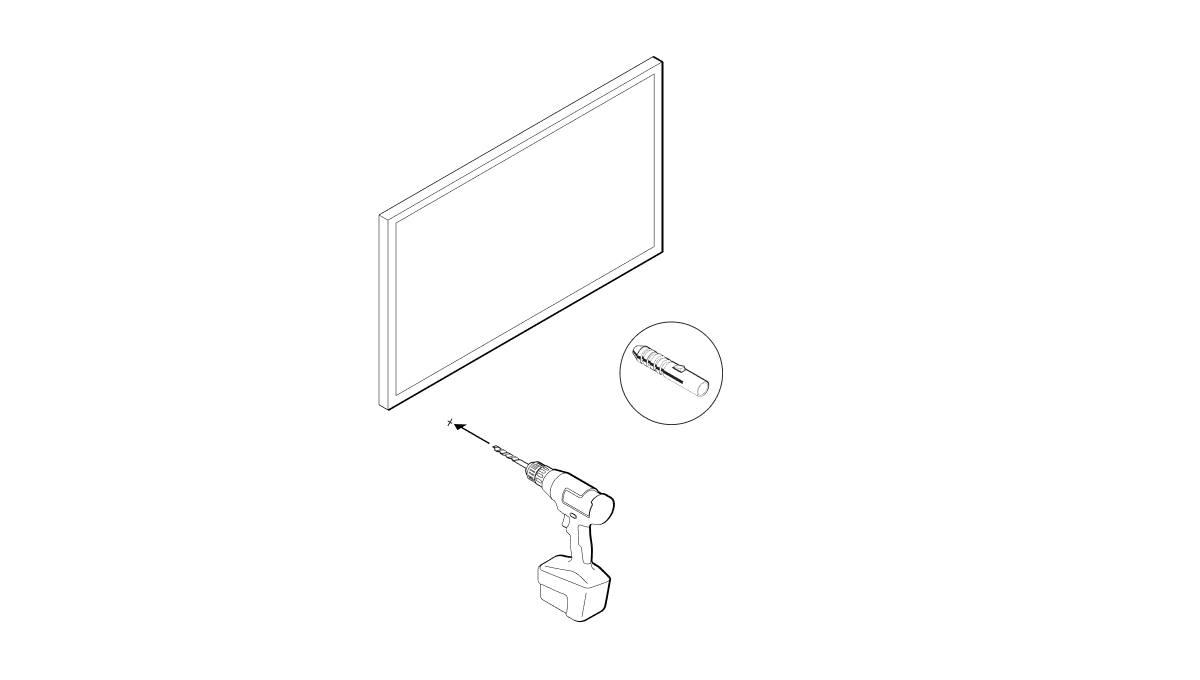 |
4 | Position the wall mount bracket over the screw locations, using a level to confirm accuracy. Use a Phillips-head screwdriver or a power drill to screw the bracket to the wall, making sure the center notch is pointing up. | 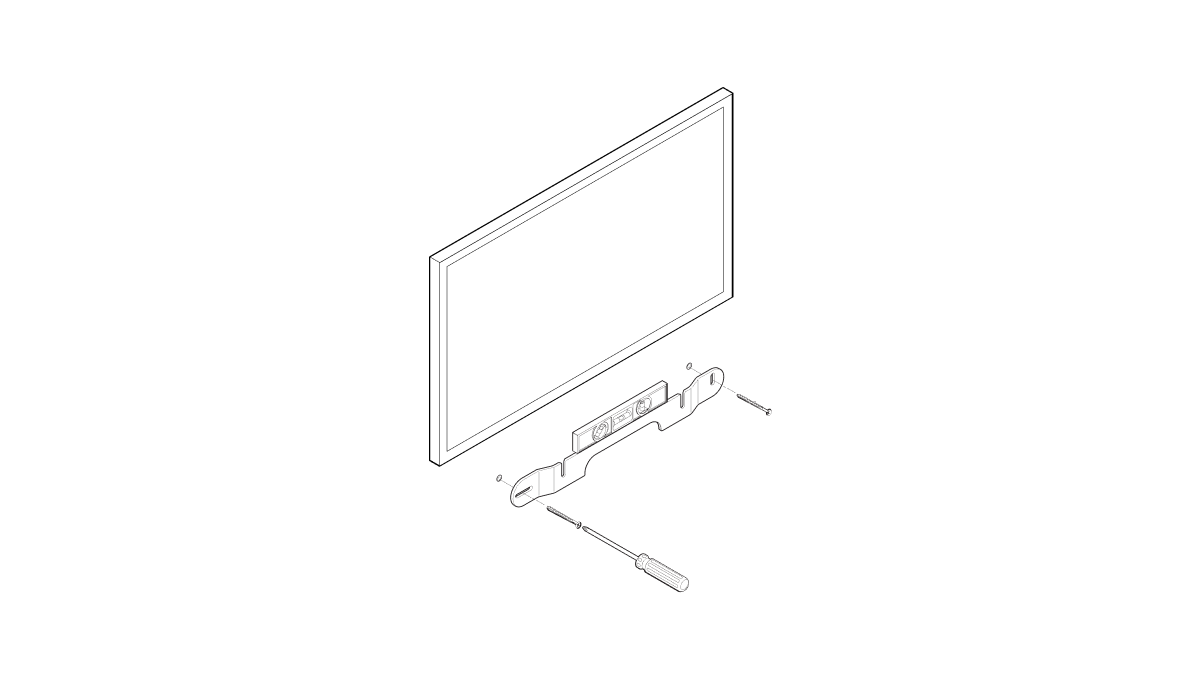 |
5 | Using a Phillips head screwdriver, fasten the 2 attachment screws to the back of the soundbar, making sure they are fully tightened. | 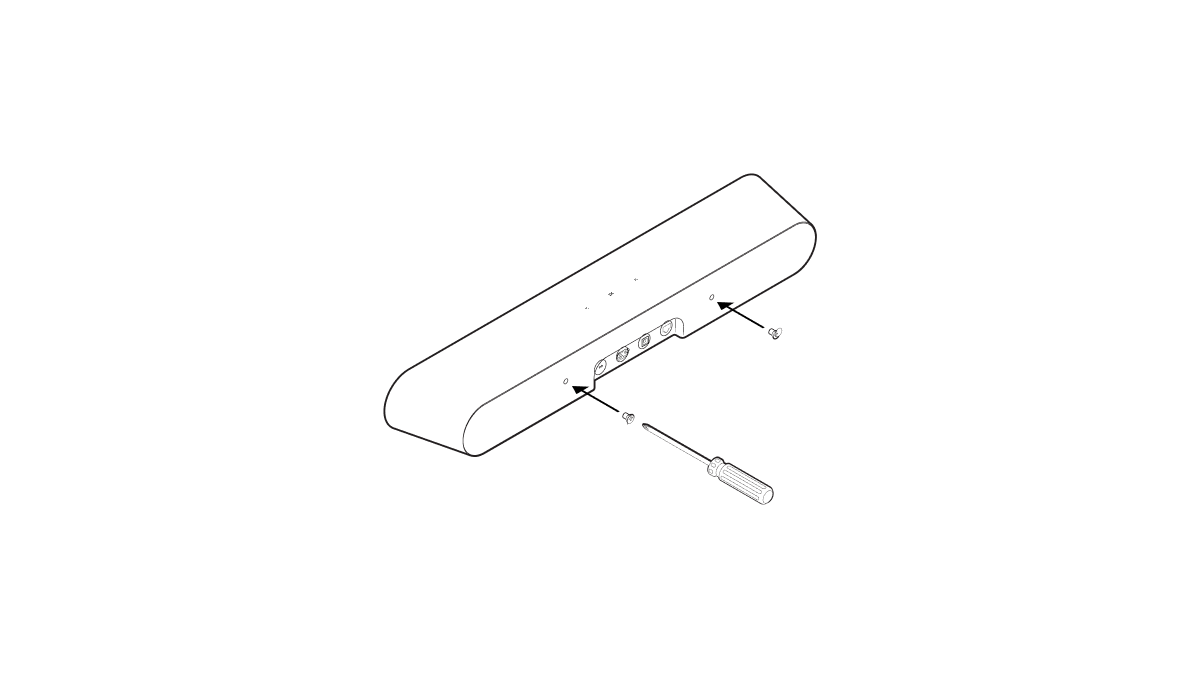 |
6 | Remove the protective cap from the optical cable, then connect the power and optical cables to the back of the soundbar. | 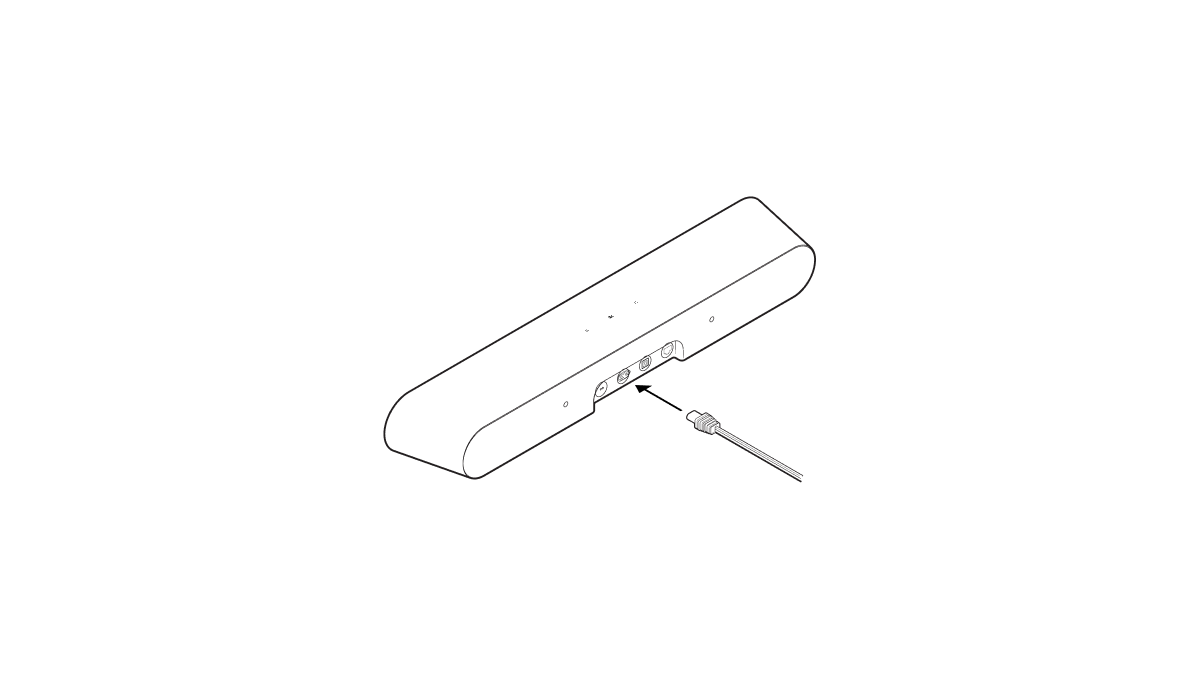 |
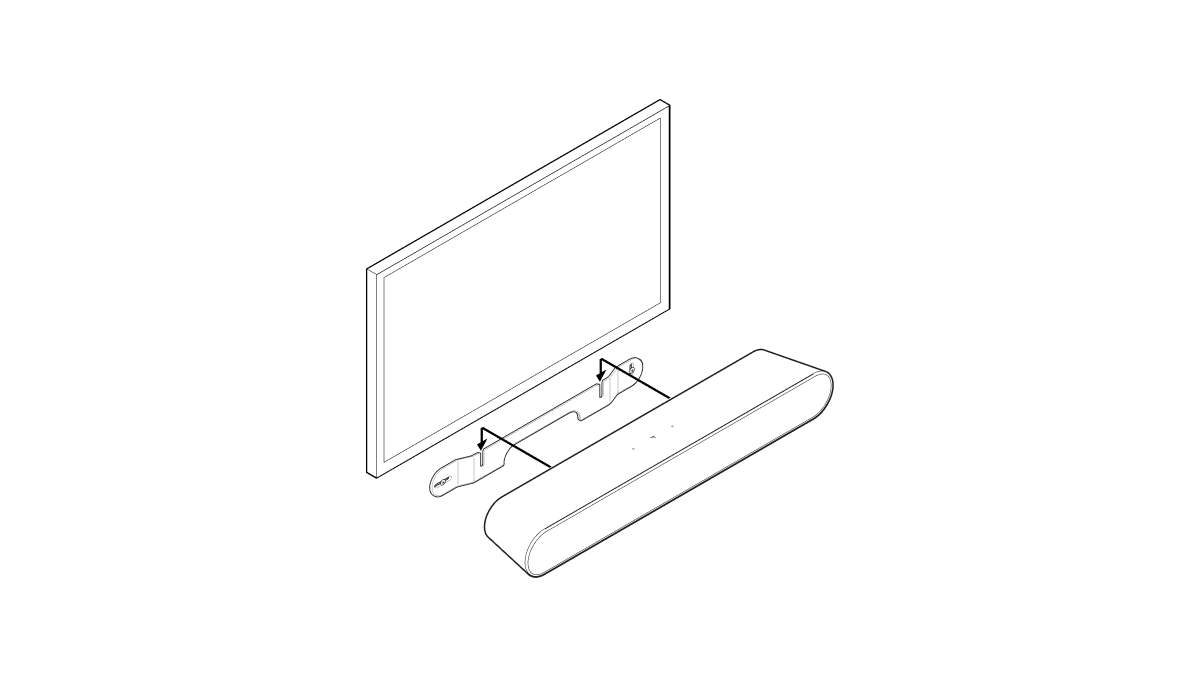
7 | Slide the soundbar down so the attachment screws fit into the slots on the wall bracket. | |
Specifications
| Feature | Description |
|---|---|
AUDIO |
|
Adjustable EQ | Use the Sonos app to adjust bass, treble, and loudness. |
Amplifiers | Four Class-D digital amplifiers. |
Audio ports | Two micro ports with proprietary anti-distortion technology. |
Tweeters | Two tweeters create a crisp and clear high-frequency response. |
Woofers | Two full-range woofers ensure you’ll hear the faithful playback of mid-range vocal frequencies plus deep, rich bass. |
SOFTWARE |
|
Apple AirPlay 2 (enable in Global Settings) | Works with AirPlay 2 on apples devices iOS 11.4 and higher. |
TrueplayTM | Dynamically tunes the speaker to the unique acoustics of the room or area (iOS device required). |
Speech enhancement | Turn on this home theater setting in the Sonos app to make TV dialogue even clearer. |
Night sound | Turn on this home theater setting to reduce the intensity of loud TV sound effects. |
System requirements | TV with optical digital audio output, broadband internet, and the Sonos app. |
GENERAL |
|
Dimensions (H x W x D) | 2.79 x 22.00 x 3.74 in (71 x 559 x 95 mm) |
Colors | White with white grille; black with black grille |
Finish | Matte |
Weight | 4.29 lb (1.95 kg) |
Speaker status light | Displays the speaker’s connection to WiFi, indicates when the volume is muted, and signals errors. |
Operating temperature | 32°F to 104° F (0° C to 40° C) |
Storage temperature | -4°F to 122° F (-20° C to 50° C) |
Control | Use your IR (infrared-enabled) TV remote control, touch controls or the Sonos app. |
CPU | Quad Core; 1.4 GHz A-53 |
Memory | 1 GB SDRAM; 4 GB NV |
Mounting | M5 threaded mounting socket |
POWER & CONNECTIVITY |
|
Power supply | Auto-switching 100-240 V, 50-60 Hz 2.0A AC universal input. |
WiFi | Connects to WiFi network with any 802.11 b/g/n, 2.4 GHz broadcast-capable router. |
Optical | Use the included optical cable to connect the soundbar to your TV's optical digital audio output. |
Ethernet | One port for hardwiring to your router (optional). |
Infrared receiver | Syncs with your TV remote for streamlined control. |
Supported devices | Connects to TV with optical cable. Plays sources connected to the TV, including cable boxes and game consoles. |
*Specifications subject to change without notice.
Important safety information
- Read these instructions.
- Keep these instructions.
- Heed all warnings.
- Follow all instructions.
- Do not use this apparatus near water.
- Clean only with dry soft cloth. Household cleaners or solvents can damage the finish on your Sonos products.
- Do not block any ventilation openings. Install in accordance with the manufacturer’s instructions.
- Do not install near any heat sources such as radiators, heat registers, stoves, or other apparatus that produce heat.
- Protect the power cable from being walked on or pinched, particularly at plugs, convenience receptacles, and the point where they exit from the apparatus.
- Only use attachments/accessories specified by the manufacturer.
- Unplug this apparatus during lightning storms or when unused for long periods of time.
- This product does not have any user-serviceable parts. Do not open or disassemble or attempt to repair it or replace any components. Refer all servicing to Sonos qualified service personnel. Servicing is required when the apparatus has been damaged in any way, such as power-supply cable or plug is damaged, liquid has been spilled or objects have fallen into the apparatus, the apparatus has been exposed to rain or moisture, does not operate normally, or has been dropped.
- The Mains plug should be readily available to disconnect the equipment.
- Warning: To reduce the risk of fire or electric shock, do not expose this apparatus to rain or moisture.
- Do not expose apparatus to dripping or splashing and do not place objects filled with liquids, such as vases, on the apparatus.