Move


Overview
Overview
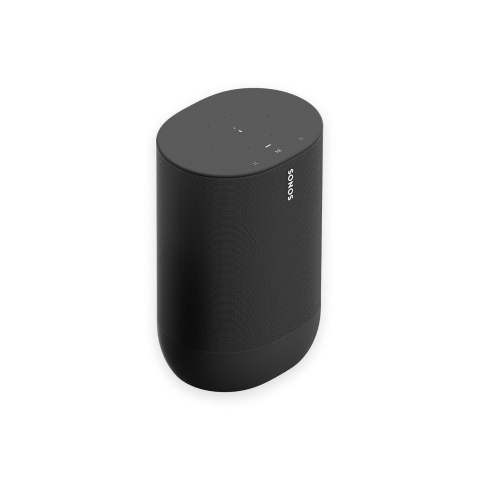
The durable, battery-powered speaker for your business—
- Up to 11 hours of continuous playback on a single charge.
- Weatherproof design is ideal for outdoor listening.
- Stream content over WiFi or Bluetooth®.
- Control your Sonos Pro system using the Sonos S2 app or the dashboard.
- See Getting Started when you’re ready to add Sonos Move to your Sonos Pro system.
Controls and lights
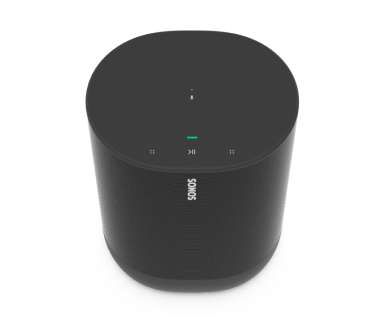 | Status light | Displays the product's connection to WiFi or Bluetooth, indicates when the volume is muted, and signals errors. Learn more |
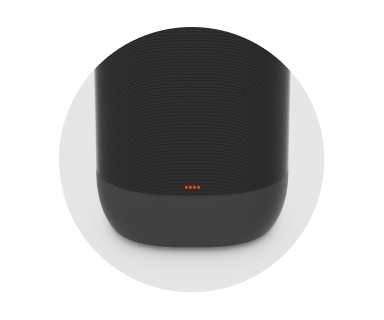 | Battery light | Indicates the battery status:
Battery Saver: To save battery life, you can set Move to power off automatically instead of going to sleep. In the Sonos app, go to Note: Move's remaining battery life is always visible in the Sonos app. |
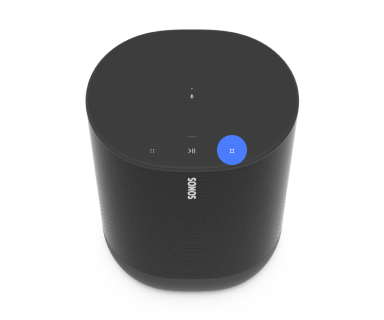 | Volume control | |
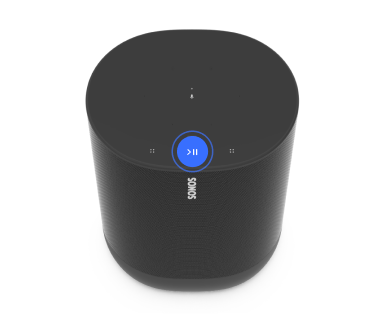 | Play/Pause |
|
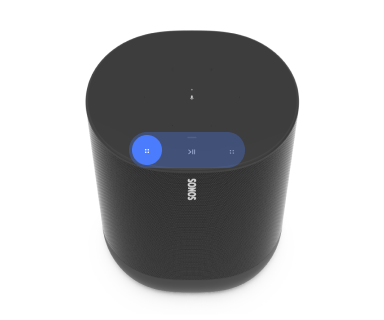 | Next/Previous |
Note: You can’t skip forward or go back when listening to a radio station. |
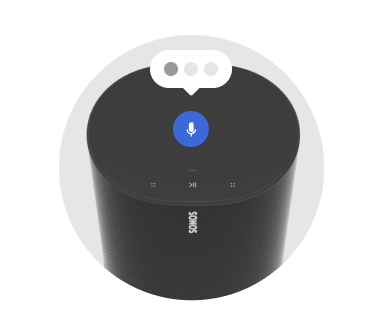 | Microphone | Tap to turn the microphone on or off:
Note: If you’ve installed a voice service and the microphone is off, you can still use voice commands. Just press and hold |
Note: If you don’t want to allow playback or volume adjustments using the speaker touch controls, you can disable them in the Sonos app.
Connector panel
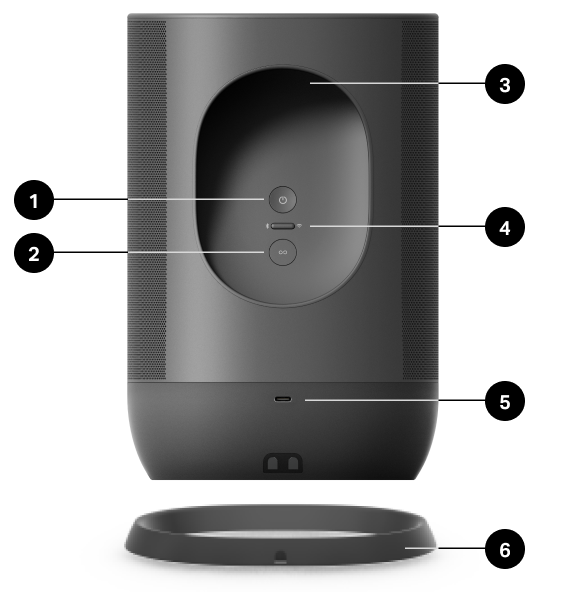
1 | Power button | Press to power on, short press to put to sleep, long press (5 seconds) to power off. |
2 | Join button | Press to connect your Sonos system during setup. |
3 | Handle | Allows for easy lifting and carrying so you can take the speaker wherever you go. |
4 | Bluetooth/WiFi toggle button | Toggles between Bluetooth and WiFi. Use WiFi for setup, stream content over WiFi or Bluetooth®. |
5 | USB-C port | Use a compatible USB-C charger for charging on the go (not included).
|
6 | Charging dock (included) | Set Move on the charging base for easy recharging—no extra wires or cables needed. |
Select a location
TrueplayTM tuning will balance the sound for wherever you place Sonos Move, but for best performance here are a few guidelines:
- When Move is placed next to a wall or on a shelf, leave at least 1" (2.5 cm) space around the back of the speaker.
- Move has a tough outer shell and IP56 rating so it’s built to withstand falls, bumps, moisture, dust, UV rays, and extreme temperatures. However, the charging base is for indoor use only, and the speaker should not be left out in a soaking rainstorm.
- Don’t use or store Sonos Move upside down.
Set up stereo pair
Pair two Sonos speakers in the same area for a wider, stereo experience. One speaker serves as the left channel and one serves as the right channel.
Note: The Sonos speakers in a stereo pair must be the same type (i.e. a pair of Ones or One and One SL).
- Place the speakers 8' to 10' (2.4 m to 3 m) apart. The listening position should be 8' to 12' (2.4 m to 3.6 m) from the paired speakers—less distance increases bass, more distance improves stereo imaging.
- Go to
 > System.
 - Select one of the speakers to use in the stereo pair, then select Set Up Stereo Pair to get started.
Charging
Charging base | Just set Move on its charging base for easy recharging—no extra wires or cables needed. |
USB-C port | For charging on the go. Use a compatible USB-C charger (type C PD power with 45W, 20V/2.25A) |
Trueplay™
Trueplay tuning measures how sound reflects off walls, counters, and other surfaces in an area, then fine tunes the Sonos speakers to make sure they sound great no matter where they're placed.
During setup, choose the Trueplay option that works best for your space. To retune later:
- Go to Settings
 .
. - Choose a product.
- Select Trueplay.
Note: If VoiceOver is enabled on your iOS device, Trueplay tuning isn’t available. Turn it off in your device settings before tuning your speakers.
Advanced Tuning
Advanced tuning is custom and precise. It takes about 5 minutes and uses the microphone on an iOS device (running iOS 8 or later) so you'll move around the room while the sound is fine tuned for your space.
Note: Advanced tuning is the best choice for larger areas (larger open spaces may experience less precise tuning).
Quick Tuning
Quick tuning is fast, effortless, and accessible. It takes about a minute and uses the microphone on your Sonos product to detect the environment so there's no need to move around during tuning.
Note: Quick Tuning is available for both iOS and Android, and is a good choice for smaller areas, or spaces where it's difficult to move easily.
Product settings
You can customize Sonos products using the Sonos app.
- Go to Settings .
- Select a product.
| FEATURE | DESCRIPTION |
|---|---|
Product Name | If you move your speaker to a new spot, you can change its name in Settings. |
EQ | Sonos products ship with preset equalization settings. You can change the sound settings (bass, treble, balance, or loudness) to suit your personal preferences. Learn more |
Trueplay | Trueplay adapts the sound for your surroundings and content. Portable products can tune themselves automatically. Learn more |
Volume Limit | You can set a maximum volume for each product or set. Learn more |
Battery Saver (portable products only) | Set your portable speaker to power off automatically instead of going to sleep. It won't appear in the Sonos app until it’s powered back on. |
Line-In (Enable in Global Settings) | When a projector, turntable, stereo, or other audio device is connected to a Sonos product, you can adjust these line-in settings:
|
Idle Auto-Disconnect | When enabled, the speaker automatically disconnects from Bluetooth after 30 minutes of inactivity, only when it's also connected to WiFi. |
Status Light | Displays the speaker’s connection to WiFi, indicates when the volume is muted, and signals errors. Learn more |
Touch Controls | You can disable the touch control on your speaker. Do this to prevent accidental playback or volume adjustments (recommended for Sonos Pro users). Learn more Note: This setting also turns off Sonos Roam's controls. |
Turn off WiFi (not available for portable products) | You can turn off your speaker’s WiFi when it’s connected to your network with an Ethernet cable. This reduces power consumption and can improve connectivity for some wired speakers. |
Switch modes
Set up Sonos Move on your WiFi, then use the mode switch on the back of Move to switch between Bluetooth and WiFi. When you use Bluetooth for the first time, you’ll need to pair Move with your device. Put it into Bluetooth mode and your mobile device will automatically connect next time.
Bluetooth pairing
- Turn Bluetooth on in your device settings.
- Press the mode button on the back of Move to switch to Bluetooth.
- Choose Move from the list of available devices in your Bluetooth settings. If it’s not there, press and hold the mode button and choose Move from the list when it appears. You’ll hear a confirmation tone when your device is paired with Move. They’ll automatically connect next time you switch Move to Bluetooth.
Microphone on/off
The microphone is used for voice control and for microphone-dependent features like Trueplay tuning. Press to turn the microphone on or off—the microphone LED light will let you know when your voice assistant is listening.
When the microphone light is on:
- If you set up a voice service, voice control is on and ready to respond.
- Microphone-dependent features like Trueplay are available.
When the microphone light is off:
- If you set up a voice service, voice control is off.
- Microphone-dependent features like Trueplay are unavailable.
Voice services
Use your voice to control your Sonos system with any voice-enabled Sonos product—play and control content, turn the volume up or down, and more.
- Sonos Voice Control: Control your whole Sonos system with hands-free ease and unmatched privacy. Sonos Voice Control comes ready to use—it only takes a few seconds to add when you set up your speakers. More information
- Amazon Alexa: You’ll need the Sonos app and the Alexa app with the Sonos skill enabled. You’ll make some changes in both apps during setup. Learn more
- Google Assistant: You’ll need the Sonos app and the Google Assistant app. You’ll make some changes in both apps during setup. Learn more
- Siri: You’ll need the Apple Home app. Add your AirPlay2-compatible Sonos speakers to the Apple Home app and then use an iPhone, iPad, or Apple TV to ask Siri to play music (currently limited to Apple Music). Learn more
Note: Voice control isn’t supported in every country yet—this feature will be available as soon as Sonos and a voice service launch together in your region.
Specifications
| Feature | Description |
|---|---|
AUDIO |
|
Amplifier | Two Class-D digital amplifiers. |
Mid-woofer | One mid-woofer ensures the faithful playback of mid-range vocal frequencies plus deep, rich bass. |
Microphones |
|
Tweeter | One tweeter creates a crisp and accurate high frequency response. |
Voice | Integrated voice control |
NETWORKING* |
|
Wireless connectivity | Connects to WiFi network with any 802.11 a/b/g/n 2.4 or 5 GHz broadcast-capable router. |
Bluetooth | Bluetooth 4.1 supports audio streaming from your Bluetooth-enabled smartphone, tablet, computer, or other device. |
GENERAL |
|
Power supply | Charging base: 100-240 VAC, ~50/60 Hz, 1.2 A. Output: 18.0 VDC, 2.5 A, 45.0 W |
Battery pack | Capacity: 2420-2500 maH Replacement: Visit our website for more information. Disposal: Check with your local waste or recycling company to determine the proper disposal method in your area. |
Dimensions (H x W x D) | 9.44 x 6.29 x 4.96 in (240 x 160 x 126 mm) |
Weight | 6.61 lb (3.0 kg) (including the battery) |
Operating temperature | 32° to 113° F (0° to 45° C) |
Storage temperature | -13° to 158° F (-25° to 70° C) |
Humidity resistant | Move meets IP56 water and dust resistance levels. Just don’t leave it out in a soaking rainstorm. Note: The charging base included with Move is for indoor use only. |
Product finish | Black with black grille; white with white grille |
Package contents | Sonos Move, charging base, and Quickstart guide. |
*Specifications subject to change without notice.
Important safety information
Caution: Danger of explosion if battery is incorrectly replaced. Replace only with the same or equivalent type.
- Read these instructions.
- Keep these instructions.
- Heed all warnings.
- Follow all instructions.
- Clean only with a dry soft cloth. Household cleaners or solvents can damage the finish on your Sonos products.
Sonos products with rubber rings on the bottom, such as Move, One, and One SL, may leave a faint ring on some surfaces treated with polyurethane. This ring can be easily removed by wiping with a damp cloth. - Do not block any ventilation openings. Install in accordance with the manufacturer’s instructions.
- Do not install near any heat sources such as radiators, heat registers, stoves, or other apparatus that produce heat.
- Do not expose batteries (battery pack or batteries installed) to excessive heat such as sunshine or fire.
- Protect the power cable from being walked on or pinched, particularly at plugs, convenience receptacles, and the point where they exit from the apparatus.
- Only use attachments/accessories specified by the manufacturer.
- Unplug this apparatus during lightning storms or when unused for long periods of time.
- Refer all servicing to Sonos qualified service personnel. Servicing is required when the apparatus has been damaged in any way, such as power-supply cable or plug is damaged, liquid has been spilled or objects have fallen into the apparatus, the apparatus has been exposed to heavy rain or moisture, does not operate normally, or has been dropped.
- The Mains plug should be readily available to disconnect the equipment.
Warning: Sonos Move meets IP56 water resistance levels. To reduce the risk of fire or electric shock, don’t expose this apparatus to a soaking rainstorm.