Sonos app
Overview
Overview
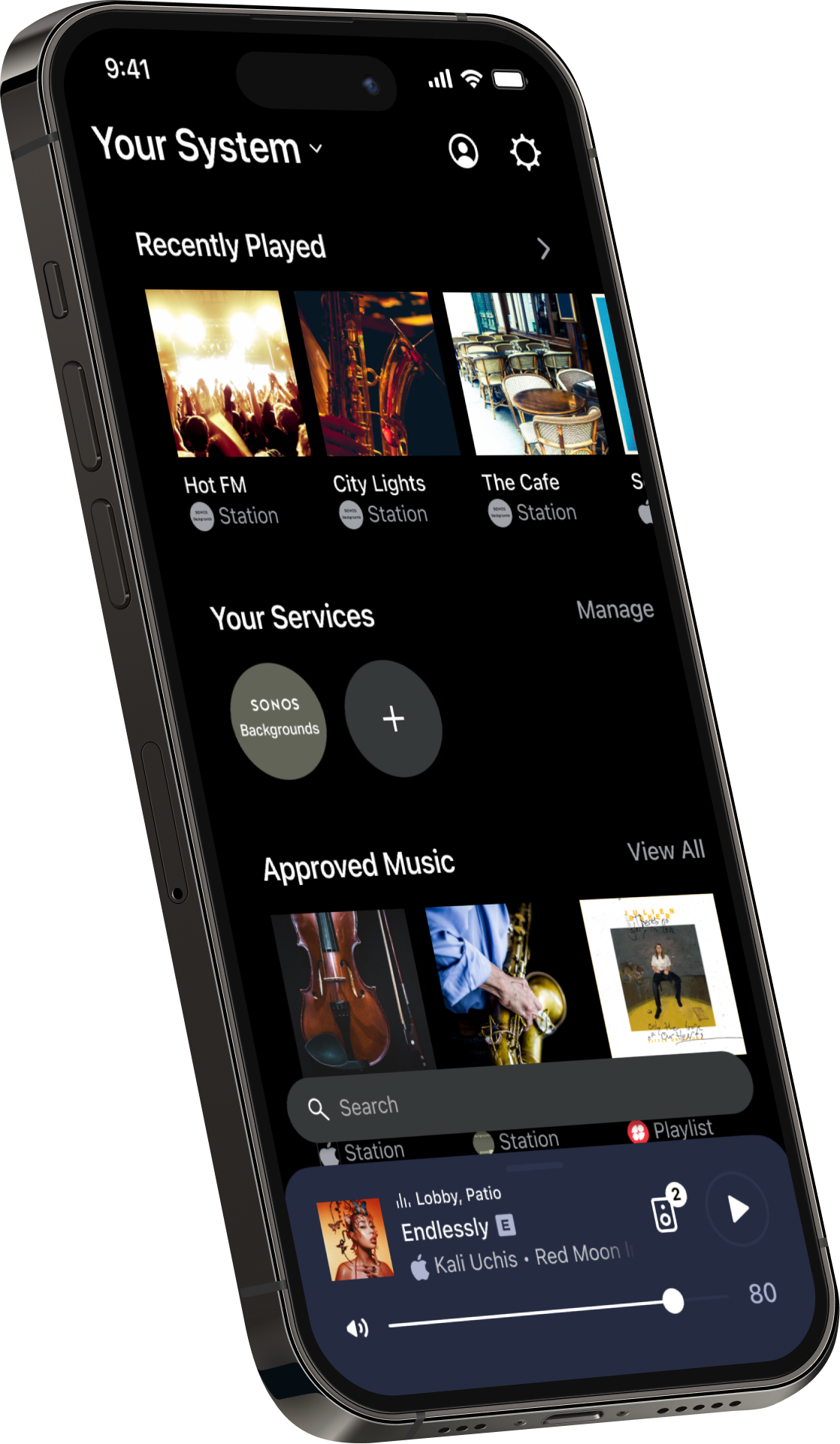
Your key to the ultimate listening experience.
The Sonos app (iOS and Android) is used to set up systems, maintain them, and play music at a location. When you're subscribed to Sonos Pro, most settings and controls require you to be signed in (no guest access).
- Better together. Play music anywhere—group products to play the same music everywhere, or listen to different music in each area.
- Plug, tap, and play. The Sonos app walks you through new product and feature setup with step-by-step instructions.
- Find everything you want faster. Search is always available at the bottom of the Home screen. Just enter the artist, genre, album, or song you want, and get a set of combined results from all your services.
- Approve music. Save songs, playlists, and stations to create an approved list of music for your employees.
- More powerful together. Easily move content around your system with the output selector and group Sonos products to take the sound from room filling to thrilling.
- Total control in the palm of your hand. Adjust volume, group products, approve music, customize settings, and more.
Home screen controls
The intuitive layout of the Sonos app puts your audio content, services, and settings into an easily scrollable Home screen.
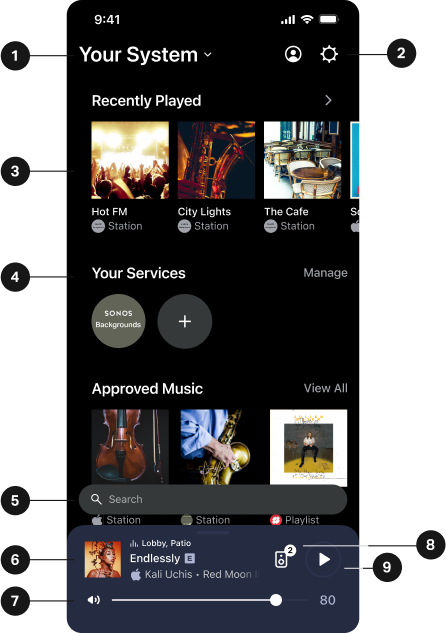
1 | System name |
|
2 | Account System Settings | Account |
3 | Collections | Content in the Sonos app is sorted by collection. This includes Recently Played, Approved Music, pinned content, and more. Select Edit Home to customize your layout. |
4 | Your Services | Select Manage to make changes to your accessible services. Preferred ServiceYour preferred service will always display first in lists of services in the Sonos app. |
5 | Search | The Search bar is always available at the bottom of the Home screen. Enter the artist, genre, album, or song you want and get a set of combined results from all your services. |
6 | Now Playing | The Now Playing bar sticks around as you browse the app, so you can control playback from anywhere in the app:
|
7 | Volume |
|
8 | Output selector |
|
9 | Play/Pause | Pause or resume content from anywhere in the app. Note: The ring around the play/pause button fills to show the content progression. |

Edit Home
Customize the collections that appears on your Home screen to more quickly access the content you listen to most.
Scroll to the bottom of the Home screen and select Edit Home. Then, select  to remove a collection or hold and drag to change the order collections appear on the Home screen.
Select Done when you’re happy with the changes.
Content services
Sonos Pro works with many commercial music services. We recommend removing the music services you don't want to use during business hours. Sign in to the accounts you use for your business or discover new services in the Sonos app.
Your Sonos Pro subscription includes Sonos Backgrounds—a commercially licensed music service that's fully designed with businesses in mind. It’s curated for a variety of business types and environments so you can choose the mood that fits your business, with new tracks added regularly.
Learn more about the available services licensed for commercial use on Sonos.
| Location | Instructions |
|---|---|
Add a service from the Home screen |
|
Add a service from Account |
|
You can enter the name of your service in the search bar.
Note: If Find My Apps is enabled, Suggested Services lists the apps you already use on your mobile device at the top of the list.
Remove a content service
To remove a service from the Home screen, navigate to Your Services and select Manage. Then, choose the service you want to remove. Select Remove Service and follow the instructions to disconnect all accounts and remove the service from your Sonos system.
Note: You will no longer be able to access the service from the Sonos app until you add it again.
Preferred Service
Your preferred service displays first anywhere lists of services appear and search results from your preferred service are always prioritized.
Select Manage > Your Preferred Service, then choose a service from the list.
Now Playing
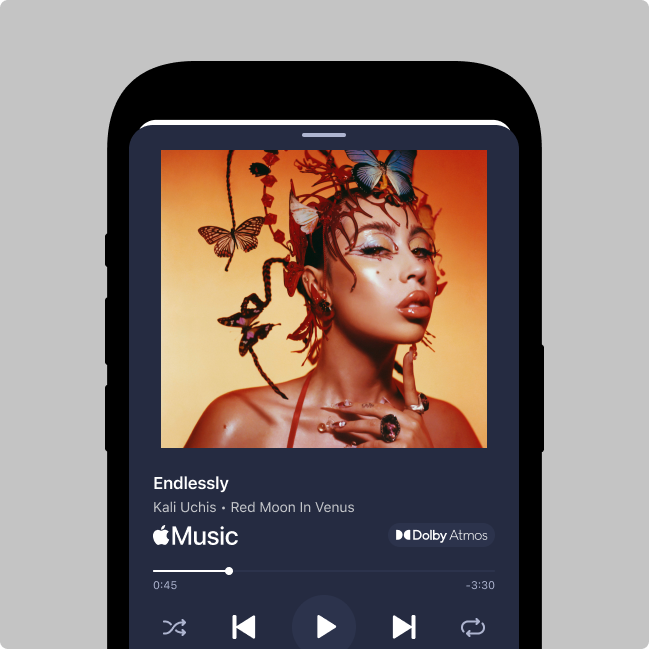
Press the Now Playing bar to see all controls and information about your current listening session.
Note: Swipe up on the Now Playing bar to view your System.
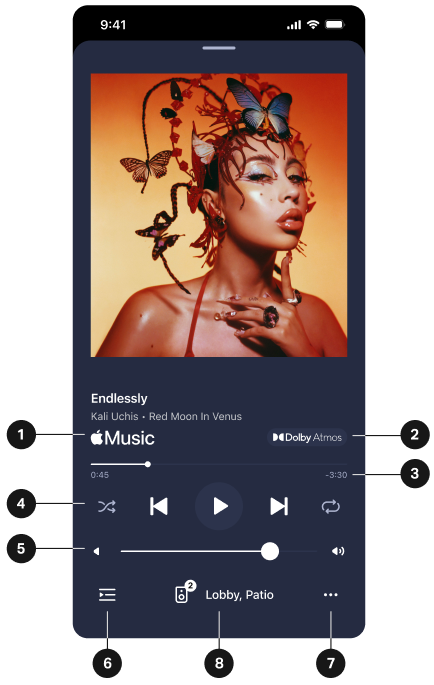
1 | Content information | Displays information about your current listening session and the where content is playing from (a service, AirPlay, etc.) Information can include:
|
2 | Content audio quality | Shows the audio quality and format of your streaming content (when available). |
3 | Content timeline | Drag to quickly fast forward or rewind content. |
4 | Playback controls | Play Play next Play previous Shuffle Repeat |
5 | Volume |
|
6 | Queue | Add, remove, and reorganize the songs coming up in your active listening session. Note: Not applicable to all content types. |
7 | More menu | Additional content controls and app features. Note: The controls and features available can change depending on the service you're streaming from. |
8 | Output selector |
|






Search
When you add a service to the Sonos app, you can quickly search the content you love or browse various services to find something new to play.
Note: Select + under Your Services to add a new service.
To search content from all your services, select the Search bar and enter the name of the albums, artists, genres, playlists, or radio stations you’re looking for. You can select something to play from the list of results or filter search results based on what content each service offers.
Browse a service in the Sonos app
Navigate to Your Services and select a service to browse. All content that streams from the service you selected is available in the Sonos app, including your library of saved content in that service’s app.
Search history
Select the Search bar to view recently searched items. You can select one from the list to quickly play it on the targeted room or speaker, or select x to clear a previous search term from the list.
Note: Enable Search History must be active in App Preferences.
System controls
Your system view shows all available outputs in your Sonos system and any active content streams.
To view and control products in your Sonos system:
- Swipe up on the Now Playing bar.
- Select your system name on the Home screen.
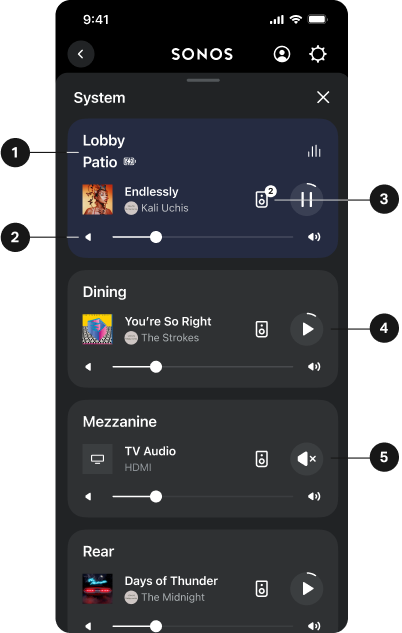
1 | Outputs | Select a card to change which output the app is targeting. Outputs are displayed as groups, home theaters, stereo pairs, portables Note: Choosing an output in your system view will not change where you active content plays. Go to the output selector |
2 | Volume |
|
3 | Output selector |
|
4 | Play/Pause | Pause or resume content playing in any room or product in your system. |
5 | Mute | Mute and unmute TV audio playing in a room with a home theater setup. |
Output selector
The output selector helps you move content to any product in your system.
From Now Playing, select group to adjust where content plays during your active listening session.
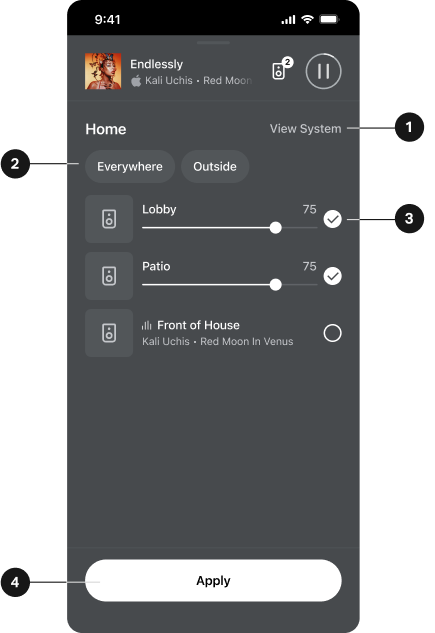
1 | View System | Select to view all products and groups in your system. |
2 | Preset groups | You can create a group preset if you typically group the same Sonos products, then select it by name in the output selector. To create or edit a group preset:
|
3 | Selected product | Add or remove Sonos products from your current listening session. Note: Volume changes live, before applying output selections. |
4 | Apply | When you're happy with your output selections, select Apply to return to the previous screen. |
Group volume
Press and hold the volume slider on Now Playing to see all active products and their volume levels. You can adjust all products' volumes at once or adjust them individually.
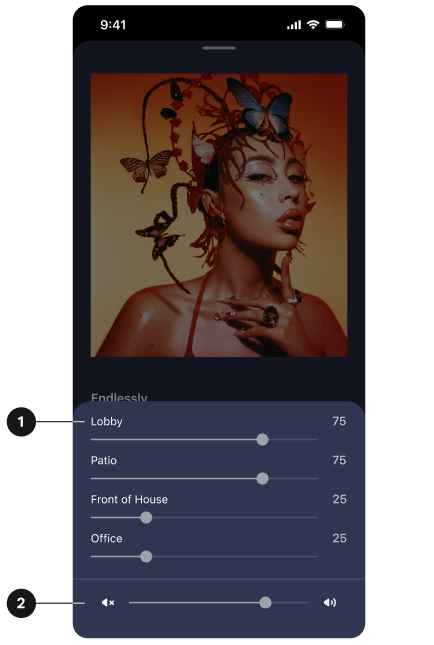
1 | Product volume |
|
2 | Group volume |
|
System settings
To view and update System Settings:
- Go to System Settings
 .
. - Select Manage.
- Choose the setting or feature you're looking for.
| Feature | Description |
|---|---|
About My System | Displays detailed information about your system and all the products registered to your Sonos account, like serial numbers and IP addresses. Additionally, you can check Sonos app details, like version and Sonos OS numbers. |
AirPlay | Shows all the AirPlay-compatible products in your system. Enable Group Non-AirPlay Products to keep products without AirPlay compatibility grouped with AirPlay-compatible products for multi-room listening. |
Audio Compression | Choose if you want the Sonos app to compress the audio when using line-in. Sonos presets the best Audio Compression level for your system; this setting overrides the pre-set. |
Date & Time | Set your time zone and daylight savings time. |
Groups | Create preset groups to quickly play audio to multiple rooms and products. |
Network | Switch your Sonos system to a different wireless network, or, if you have a product wired to your router, you can change your system’s wireless channel to reduce interference. |
Explicit Content Explicit Content | Restrict access to explicit content. |
System Name | Enter a new name for your system. The system name displays at the top of the Home screen and in System Settings. |
System Updates | Select Check for Updates to manually download the latest Sonos software. Enable Update Automatically to schedule updates in the background so your listening experience is never interrupted. |
Voice Assistants | Set up Sonos Voice Control, or a voice assistant like Amazon Alexa and Google Assistant, for hands-free listening and system control. Note: Learn more about Sonos Voice Control |
Voice control
You can add Sonos Voice Control, or a voice assistant you use often, for hands-free control of your Sonos system.
Note: If you're adding a voice assistant, download the voice assistant's app before adding it to your Sonos system.
To add voice control in the Sonos app:
- Go to System Settings .
- Select Manage.
- Select + Add a voice assistant.
| Name | Description |
|---|---|
Sonos Voice Control | Play music and control your system with hands-free ease and unmatched privacy. It all starts with “Hey Sonos." Here's a few things you can do hands-free with Sonos Voice Control:
|
Amazon Alexa |
|
Google Assistant | Google Assistant is unavailable on the following Sonos products:
|
Voice control settings
Settings available in the Sonos app can change depending on the voice assistant you choose.
| Feature | Description |
|---|---|
Music Services | Manage music services in a voice assistant's app. |
Account | Manage your account in the voice assistant's app. |
Default service | Set a default content service for Sonos Voice Control to stream from when you make a voice request. |
Remove | Choose a room or product, then select X Remove. |
Voice Language | Select a language for your voice assistant. Note: Sonos Voice Control available in English (US) and French. |
Wake Word Chime | Play a chime when your voice assistant hears the wake word. |
Room settings
The Room Settings displayed are based on the capabilities of the products in a room.
To view and update Room Settings:
- Go to System Settings .
- Select a product in your system, then navigate to the settings or features you're looking for.
Name
| Feature | Description |
|---|---|
Room | Select a new room for your Sonos product or change a portable product’s name. |
Products
| Feature | Description |
|---|---|
Speakers | Select to view product details and settings:
Select Set Up Stereo Pair to connect two compatible Sonos speakers. Select Remove Stereo Pair to disconnect two speakers. Note: An Ethernet cable wired to your router is required to select Disable WiFi. |
Soundbars | Select to view product details and settings:
Note: An Ethernet cable wired to your router is required to select Disable WiFi. |
Subs | Select to view product details and settings:
Select Connect Sub to add a subwoofer to a home theater or stereo pair. Select Remove Sub to remove it. You can connect up to two subwoofers at a time. Note: An Ethernet cable wired to your router is required to select Disable WiFi. |
Portables | Select to view product details and settings:
Select Set Up Stereo Pair to connect two compatible Sonos speakers. Select Remove Stereo Pair to disconnect two speakers. |
Sound
| Feature | Description |
|---|---|
TrueplayTM | Trueplay optimizes the sound for your environment so you get the best listening experience wherever you place your products. |
EQ | Adjust the bass, treble, balance, or loudness of your Sonos speakers. |
Surround Audio |
|
Sub Audio |
|
Height Audio | Adjust the height channel audio level during playback of immersive audio formats, when available. |
Volume Limit | Limit the maximum volume for each of your Sonos products. The limit can be set on a volume scale from 0—100. |
Stereo/Mono | Choose if you want 2 channel audio (stereo) when available or 1 channel audio (mono). |
Spatial Music | Immersive, 3D audio when available. Toggle on or off. |
Account settings
Go to Account  to manage services, view messages from Sonos, and edit account details.
On the Home screen, select to view account information and update App Preferences.
| Name | Description |
|---|---|
Messages | View messages from Sonos about upcoming features, product launches, and general information to improve your Sonos experience. |
Message Preferences | Enable or disable Push Notifications. |
Upgrade Program | See if any products in your system are eligible for an upgrade discount. |
Content Services | View and manage your content services available in the Sonos app. |
Account Details |
|
App Preferences | Customize Sonos app settings and view details like app version. View more details below in App Preferences. |
Data & Privacy | View usage data and Sonos' privacy policy. |
Legal | Terms of use for various Sonos touch points. |
Sign Out | Sign out of your Sonos account. Note: Some Sonos features are unavailable when you sign out. |
App preferences
In App Preferences, you can customize Sonos app settings and view details like app version.
On the Home screen, select Account , then select App Preferences to get started. Select Reset App to return to default app settings.
General
| Feature | Description |
|---|---|
Show Notifications (Android only) | Get notified when you get a new message from Sonos. |
Enable Search History | Allow recent searches to be saved. Data is stored on-device and is never uploaded to our servers. |
Home Screen Volume Control (Android only) | Allow playback controls to appear on your device when you close the Sonos app. |
Product Setup
| Feature | Description |
|---|---|
Allow Pop-Up Messages | Allow messages to automatically display when new products are found or new features are available. |
Web app
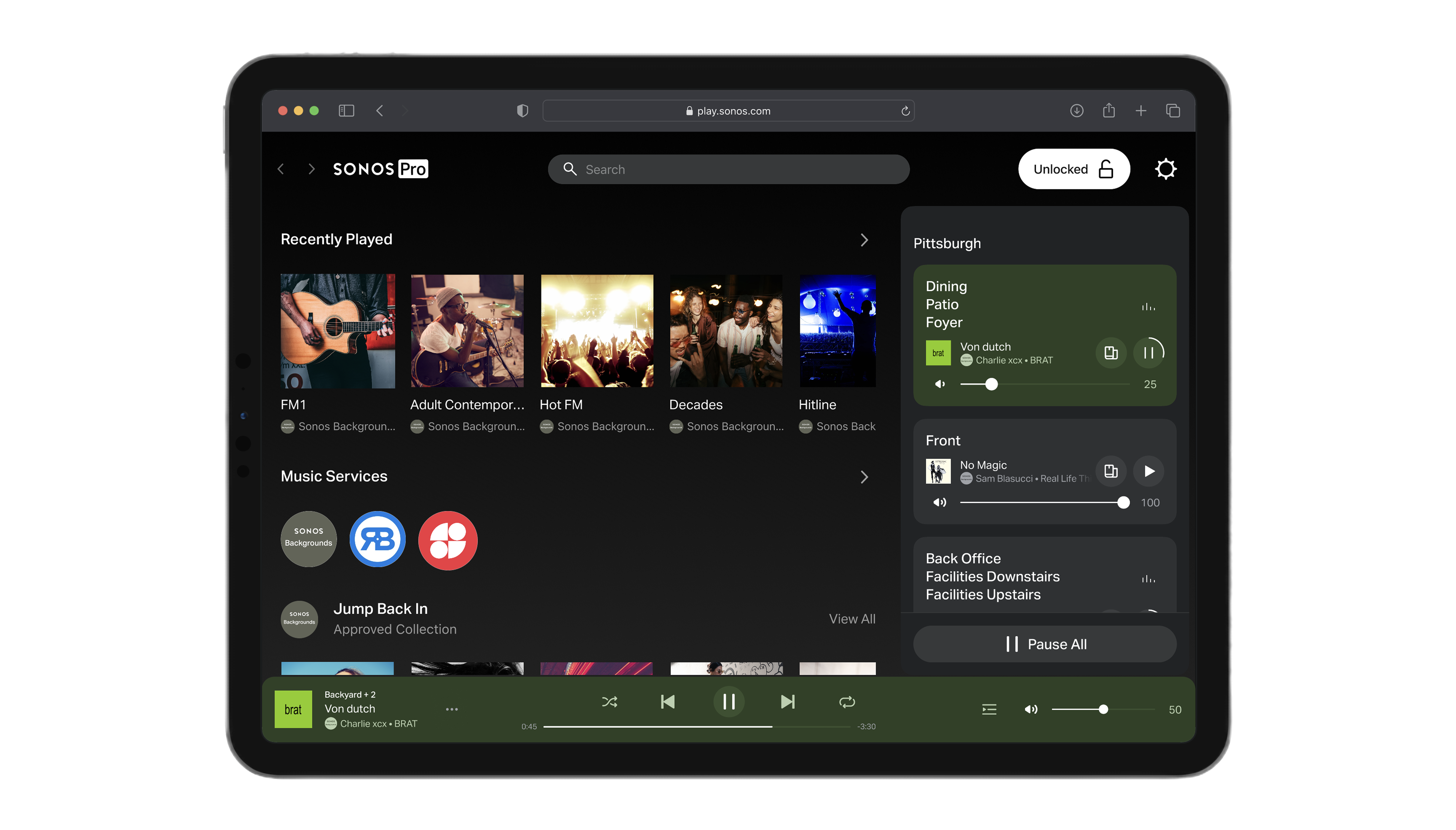
The Sonos web app gives you and your employees complete control of your music experience from a browser. Access it at play.sonos.com on a computer or tablet. Some settings may only be available in the mobile app.
Note: If there’s no activity in the Sonos web app at a location for 10 days, your account will be automatically signed out.
Locked mode
As a Sonos Pro subscriber, you can decide how much control employees have over music. Set up Locked Mode in the Sonos web app to selectively restrict access to certain features and settings. You or an admin can set this up on the device your employees use in your business location.
If you have multiple locations, set up locked mode at each location individually.
- On the computer or tablet your employees will be using, sign in to the Sonos web app and go to Settings.
- If you have multiple locations, have a different admin sign in at each location so they can be set up uniquely.
- Select Locked Mode.
- Create an Account PIN. This PIN will be used to unlock the restricted features. Ensure it’s something you’re comfortable sharing with anyone that you want to have full access.
- This PIN is associated with the signed in account and will be used across all devices that sign in using the same credentials.
- Choose the locked mode option that best suits your location.
- Choose Approved music only if you have approved music for your business in the Sonos Pro dashboard and you want employees to be able to change the playlist throughout the day as the vibes change.
- Choose Basic controls only if you don’t want employees to change the playlist once you’ve locked the device. They’ll still be able to adjust the volume, skip songs, and pause the music as necessary.
Note: If your account is automatically signed out due to 10 days of inactivity, and Sonos was locked when that happened, it will still be locked when you sign back in.