Sonos Ace Ultra


Overview
Overview
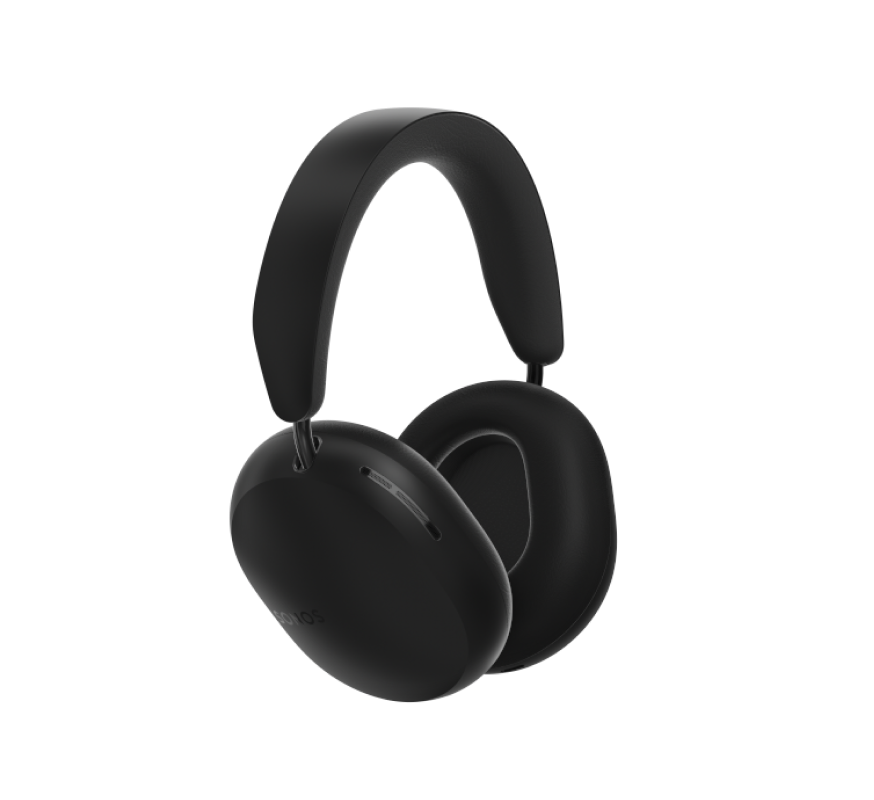
Sonos Ace Ultra is everything you want in your headphones. And then some.
- Every note, just right. A Sonos-designed driver delivers deep bass, clear detail, and balanced sound you can custom-tune. Adaptive EQ tunes the sound in real time based on how the headphones fit.
- Twice the quiet. Up to 2x more Active Noise Cancellation than Sonos Ace. Or hear what's around you with Aware mode.
- Battery that lasts and lasts. Listen up to 35 hours with Adaptive Noise Cancellation on, or up to 50 hours with Active Noise Cancellation off.
- Part of the Sonos system. Play music, TV, your local library, even vinyl to Sonos Ace Ultra using the app, or move whatever’s playing from your speakers.
- Engineered for comfort. Plush ear cushions, rotating ear cups, and an adjustable headband create a soft, secure fit.
Controls, lights, and ports
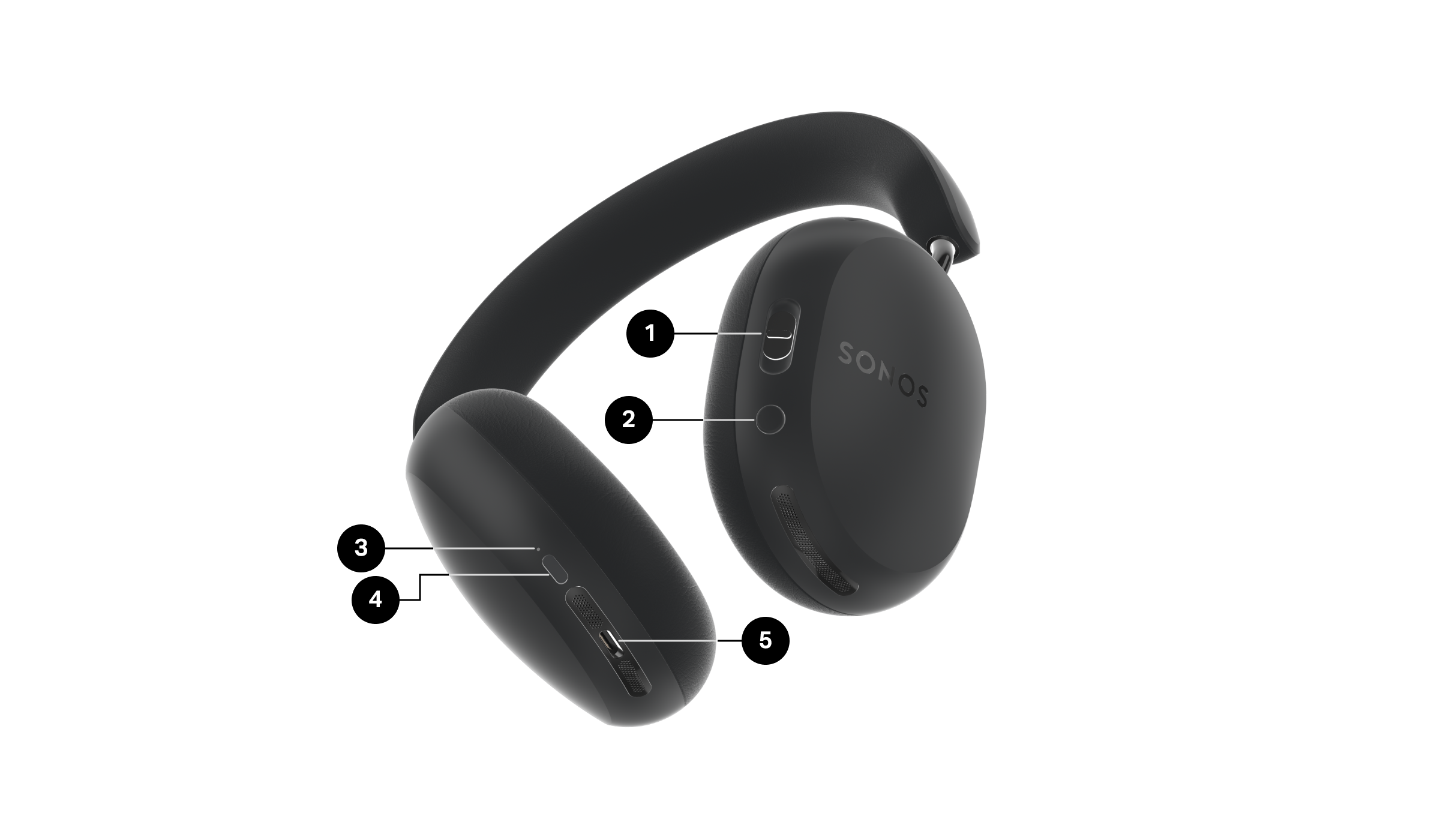
1 | Content Key | Playback
Swap
|
2 | Noise Control/Voice Control | Noise Control Press to switch between Active Noise Cancellation and Aware Mode. Note: In the Sonos app, you can change which Noise Control options this button provides. Voice Control Press and hold to activate your device voice assistant, such as Siri or Gemini. You'll hear a tone when it's ready to listen. |
3 | Status light | Indicates low battery, charging state, Bluetooth connection, and signals product updates and errors. It turns off when you're wearing your Sonos Ace Ultra. |
4 | Power/Bluetooth | Power on/off
Bluetooth pairing
Note: When you turn on your headphones, they automatically connect to the preferred or most recently connected Bluetooth device, if available. Factory reset You can factory reset your Sonos Ace Ultra to clear all the registration with the app, settings changes, and paired Bluetooth devices.
Note: Sonos Ace Ultra is immediately ready to pair with a Bluetooth device when unboxed and after a factory reset. |
5 | USB-C port | Charging Use the included cable to connect a USB-IF certified or USB-compliant USB-C power supply, 7.5 W minimum (15 W recommended). Line-in You can plug your headphones into an audio device in two ways:
Bluetooth is disabled when Sonos Ace Ultra is connected to a device with a USB-C cable. The light will show solid white. |
Adjust the fit
Sonos Ace Ultra underwent extensive wear testing, with thoughtful consideration for different head shapes, head sizes, hairstyles, and accessories, to ensure comfort for as long as you're listening.
The stainless steel headband smoothly extends and stays securely in place. Inside the ear cup, an innovative mechanism allows for precise adjustment to equalize pressure and create an exceptional acoustic seal.
To get the most out of your Sonos Ace Ultra, it's important that your headphones fit comfortably:
- Before you put them on, make sure each ear cup is on the correct side. There is an L printed on the inside of the left ear cup, and R printed on the inside of the right ear cup. There’s also a contrasting interior color for the right ear cup. You should be able to use the Content Key with your right hand.
- Try on your Sonos Ace Ultra. Your ears should be centered and comfortably surrounded by the ear cushions. Extend or shorten the arms of the headband as needed by pulling the ear cup down or pushing it up.
Ear cushion replacement
Ear cushions can be easily replaced if they wear out over time. Each cushion is securely held in place by magnets, but can be removed with a light pull.
When reattaching an ear cushion, here are some things to keep in mind:
- Make sure both cushions are on the correct sides. Look for the L (left) and the R (right).
- Before replacing a cushion, wipe the surface with a clean, dry cloth to make sure it's free of dust and debris.
- The ear cushions will automatically snap into place.
Bluetooth pairing
Sonos Ace Ultra is immediately ready to pair with a Bluetooth device when unboxed or after a factory reset.
To connect your Sonos Ace Ultra to a new device, make sure Bluetooth is enabled on the device you want to pair with. Then initiate pairing mode by pressing and holding the Power/Bluetooth button on your headphones (about 7 seconds) or, if you’ve paired before, by going to your Sonos Ace Ultra Settings in the app. Any active audio streams will stop when you enter pairing mode.
- If you’re pairing while wearing Sonos Ace Ultra, hold the button past the power down sound (first sound) until you hear the Bluetooth pairing sound (second sound).
- If you’re pairing while Sonos Ace Ultra is off your head, hold the button until the status light slowly blinks blue.
To connect to a device you’ve already paired with, go to the device’s Bluetooth settings and select your Sonos Ace Ultra from the list of found devices.
- If you’re connecting while wearing Sonos Ace Ultra, you’ll hear a sound confirming that your Sonos Ace Ultra has successfully connected.
- Once connected, the status light on Sonos Ace Ultra will change to solid blue and your device’s Bluetooth settings list will show your headphones as “Connected”.
| Light | Description |
|---|---|
Solid white | Powered on, not connected to a Bluetooth device. |
Solid blue | Powered on, connected to a device via Bluetooth. |
Blinking blue | Powered on, searching for a Bluetooth device. |
Multipoint
You can connect your Sonos Ace Ultra to 2 Bluetooth devices and automatically switch between audio streams. Make sure Bluetooth is enabled on both of your devices.
In the Sonos app:
- Go to Settings
 .
. - Choose Sonos Ace Ultra under Headphones.
- Find Bluetooth, then select Multipoint.
Note: Multipoint is off by default. Turn it on in your Sonos Ace Ultra Settings.
Power and charging
Use the included cable to connect a USB-IF certified or USB-compliant USB-C power supply, 7.5 W minimum (15 W recommended).
While your Sonos Ace Ultra is charging, you can continue listening to a Bluetooth-connected device.
Note: Charge your Sonos Ace Ultra in an ambient temperature between 41°F and 104°F (5°C to 40°C).
Low battery
When the battery level reaches 10% power, you’ll hear a tone and the status light will flash orange.
| Light | Description |
|---|---|
Flashing orange | Between 0% and 10% battery remaining. |
Charging
After connecting your Sonos Ace Ultra to power:
- The status light shows solid orange when your headphones are plugged in and charging.
- The status light will show solid green when your headphones are plugged in and reach full charge.
| Light | Description |
|---|---|
Solid orange | Plugged in and charging normally. Below 100% charge. |
Solid green | 100% battery. You can unplug your headphones. |
Flashing red | Charging error. Unplug your headphones from power. |
Rapid charging
When your Sonos Ace Ultra reaches 10% power or lower, rapid charging quickly recharges them to give you 3 hours of playback after just 3 minutes.
Use the included USB-C to USB-C cable and a compliant USB-C power supply (not included) to charge your headphones:
- 0% to 10% in 3 minutes
- 10% to 100% over the next 3 hours
Note: Rapid charging requires an ambient temperature between 59°F and 86°F (15°C to 30°C). Outside this range, your Sonos Ace Ultra charges at standard speed.
Linking to your system
You can link Sonos Ace Ultra to your system, and then use the Sonos app to play content to them. You can also press and hold the Content Key to move whatever’s playing on your Sonos system – music, TV, your local library, or vinyl – to your headphones. Do it again to move the sound back to your speakers.
Use the Sonos app to link Sonos Ace Ultra to the rest of your system. Make sure your products are up to date and WiFi is enabled before connecting them.
- Go to the Sonos app.
- Go to Settings then select your Sonos Ace Ultra.
- Select +Link to your system. This will also set up TV Audio Swap with all compatible soundbars in your home.
Note: Linking to your system is an Early Access feature, provided on an as-is, opt-in basis. It may change, be limited, or be temporarily unavailable as we continue to develop it. You can turn it on or off via the Sonos app. Additional terms may apply.
TV Audio Swap
TV Audio Swap allows you to move TV audio from a compatible Sonos soundbar to Sonos Ace Ultra. Set it up with 2 pairs of Sonos Ace Ultra to watch and listen together.
Once it’s set up, press and hold the Content Key or use the app to swap audio to your headphones or swap it back to the soundbar. A second pair of Sonos Ace Ultra can join or leave your session the same way.
Go to the Settings for your Sonos Ace Ultra to tune them for TV experiences using TrueCinema, and turn on spatial audio and dynamic head tracking for the most immersive experience possible.
Voice control
If your Sonos Ace Ultra is connected to a Bluetooth device that has a built-in voice assistant, you can activate it using the Voice Control button, located on the right ear cup. Press and hold to activate the voice assistant on your device.
You'll hear a tone when it's ready to listen.
Wear detection
Sonos Ace Ultra uses sensors in the ear cups to detect if you’re wearing them. When you take them off, Sonos Ace Ultra pauses your content so you don't miss a second.
Wear detection is on by default. With wear detection on, Sonos Ace Ultra will turn off after 30 minutes of inactivity. Go to your Sonos Ace Ultra Settings to decide if wear detection controls play/pause and if you can put on your headphones to answer calls automatically. You can also choose to turn off the feature entirely.
Note: If you take off Sonos Ace Ultra during a call, the call will continue out loud on your phone/mobile device.
Phone calls
Microphones target your voice and suppress background noise to produce crystal clear audio during phone and video calls.
Answer a call
Press the Content Key once to answer an incoming call. You'll hear a tone when the call connects successfully.
Note: If you want to be able to put on your headphones to answer an incoming call automatically, turn on wear to answer in the wear detection settings of your Sonos Ace Ultra.
Decline a call
Press and hold the Content Key to decline an incoming call. You'll hear a tone when the call is declined.
End a call
Press the Content Key once to end an active call. You'll hear a tone when the call ends.
Product settings
Use the Sonos app to adjust product settings for Sonos Ace Ultra:
- Go to Settings .
- Choose Sonos Ace Ultra under Headphones.
| Settings | Description |
|---|---|
Name | Change the name of your Sonos Ace Ultra. This name will show up in Bluetooth pairing lists and throughout the app. |
Status | Displays battery percentage and time remaining. |
Noise Control | We provide 3 levels of Noise Control:
With several ways to modify:
|
EQ | Make adjustments to EQ:
Toggle Head Tracking on or off. |
Head tracking | Turn on or off to use Sonos Intelligent Motion Processing with Dolby Head Tracking while listening to any content. This industry-leading Dolby Atmos experience surrounds you in hyperrealistic sound with different elements of the sound coming from points around your head, anchored to your screen. |
System |
|
Bluetooth | Manage multipoint, designated a preferred device, and add or remove connections to various Bluetooth devices. |
Battery |
|
Hardware Controls |
|
About |
|
Specifications
Audio |
|
Drivers | Custom-designed 40 mm dynamic driver in each ear cup. |
Microphones | 10 microphones for noise control and voice targeting. |
Spatial audio | Stream spatial audio content from supported services and devices. |
Lossless audio | Enjoy lossless audio over Bluetooth with a mobile device that supports aptX Lossless, or via a USB-C connection. |
Noise control | Active Noise Cancellation blocks external sounds. Aware mode blends ambient sound with your content. |
Head tracking | Sonos Intelligent Motion Processing with Dolby Head Tracking. Enable this feature in the Sonos app. |
TV Audio Swap | Press the Content Key to swap sound from a compatible Sonos soundbar to Sonos Ace Ultra (iOS and Android). |
Dolby Atmos | Requires a compatible device and compatible content. |
Adjustable EQ | Use the Sonos app to adjust bass, treble, and loudness. |
Details & Dimensions | |
Dimensions |
|
Weight | 0.72 lbs (325 g) |
Colors |
|
Finish |
|
LED | Light on the bottom of the left ear cup indicates connection status. |
Controls | |
Content Key |
|
Noise Control (right ear cup) |
|
Power/Bluetooth (left ear cup) |
|
Power & Connectivity | |
Bluetooth | Bluetooth 6.0 supports audio streaming from any Bluetooth-enabled device. |
Battery (replaceable) | Li-ion, 1060mAh battery powers up to 35 hours of listening time. Replacement: Visit our website for more information. Disposal: Check with your local waste or recycling company to determine the proper disposal method in your area. |
Charging | Use the included cable to connect a USB-IF certified or USB-compliant USB-C power supply, 7.5 W minimum (15 W recommended). Rapid charge provides 3 hours listening time in 3 minutes from 0%. Full charge from 0% can require up to 3 hours. Note: The power delivered by the charger must be at least 5 Watts and max 12 Watts to get the maximum charging speed. |
WiFi |
|
Operating temperature | 32°F to 104°F (0°C to 40°C) |
Charging temperature | 41°F to 104°F (5°C to 40°C) |
Rapid charging temperature | 59°F to 86°F (15°C to 30°C) |
What's in the box? | |
Product | Sonos Ace Ultra |
Travel case | With removable cable pouch |
USB-C to USB-C cable | 2.46 ft (0.75 m) |
USB-C to 3.5 mm cable | 3.94 ft (1.2 m) Note: Sonos Ace Ultra is not compatible with third party cables. |
Documentation | Quickstart Guide and legal/warranty information |
Requirements | |
Audio source | Supported Bluetooth device, such as a smartphone |
Power source | Use the included cable to connect a USB-IF certified or USB-compliant USB-C power supply, 7.5 W minimum (15 W recommended). |
Important safety information
- Read these instructions. Keep these instructions. Heed all warnings. Follow all instructions.
- Clean only with dry soft cloth or wet soft cloth with mild detergent. Household cleaners or solvents can damage the finish on your Sonos components.
- Make sure that the USB-C socket and USB-C cable are dry before charging.
- Do not store near any heat sources such as radiators, heat registers, stoves, or other apparatuses that produce heat. Do not leave the product or accessories in direct sunlight for extended periods.
- Protect the charging cable from being walked on or pinched, particularly at plugs, convenience receptacles, or the point where they exit from the product.
- Only use attachments/accessories recommended by the manufacturer. Use only USB-certified USB-C to USB-C cables to charge this product. Do not use USB-A to USB-C cables to charge this product.
- Do not leave the product unattended during charging. Disconnect the device from power after charging is completed.
- Refer all servicing to Sonos qualified service personnel.
- Warning: This unit is not waterproof. To reduce the risk of fire or electric shock, do not expose this product to rain, moisture or other liquids. Avoid using in wet conditions.
- Do not use the product while cycling, driving, or engaged in any other activity where your full attention is required. Doing so may result in an accident.