Sonos Amp Multi


Overview
Overview
Built for professionals, Amp Multi empowers integrators to create bespoke distributed audio experiences for clients.
- Powers up to 4 zones using 8 outputs at 125W each.
- Leverages GaN technology for efficiency and post-filter feedback (PFFB) for superior audio quality.
- Provides reliable, fanless cooling and simplifies setup with its innovative design and custom 2U rack mount.
- Supports precise tuning of each output through ProTune.
- Works with Sonos S2 (for Android and iOS).
Lights
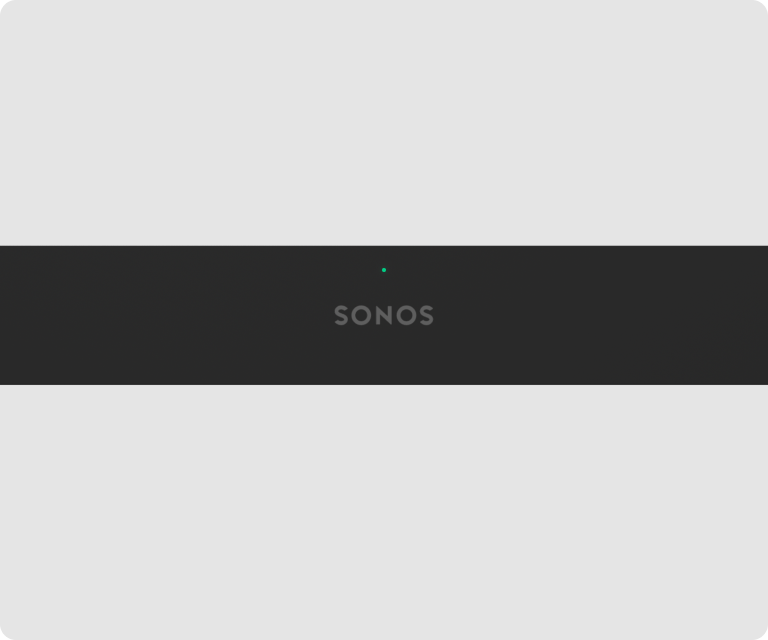 | Front status light | Displays the product's connection to WiFi, indicates mute status, and signals errors. Learn more |
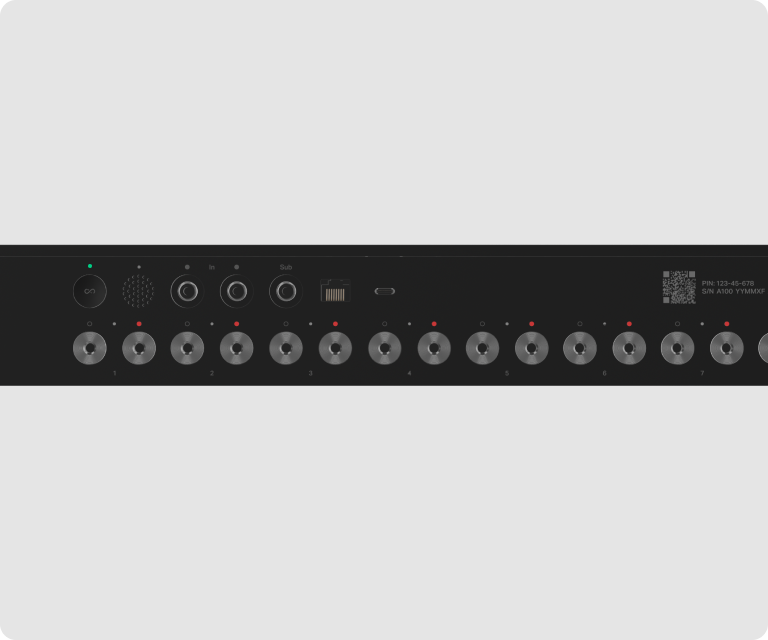 | Back status light | Provides the same information as the front status light. |
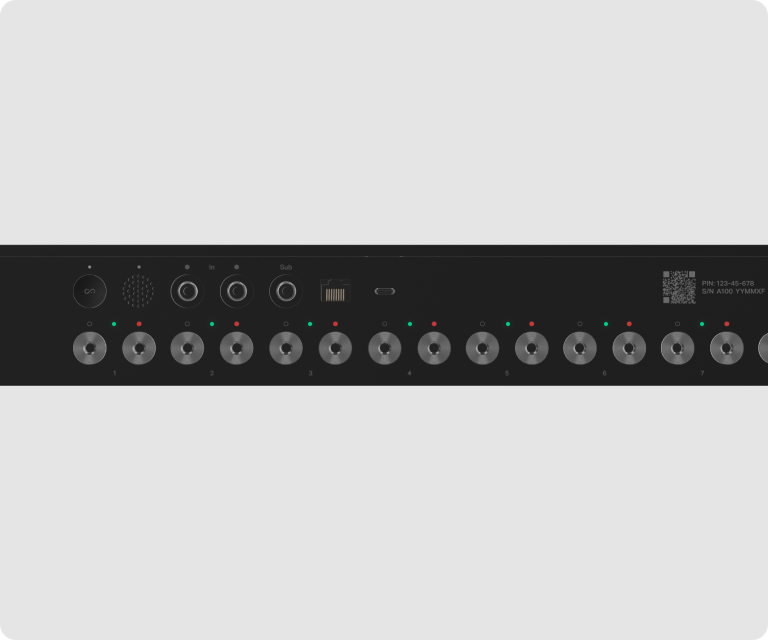 | Output status light | 8 lights, 1 above each output, indicate output selections during setup. After setup, they signal connection status, mute status, and errors. |
Connector panel
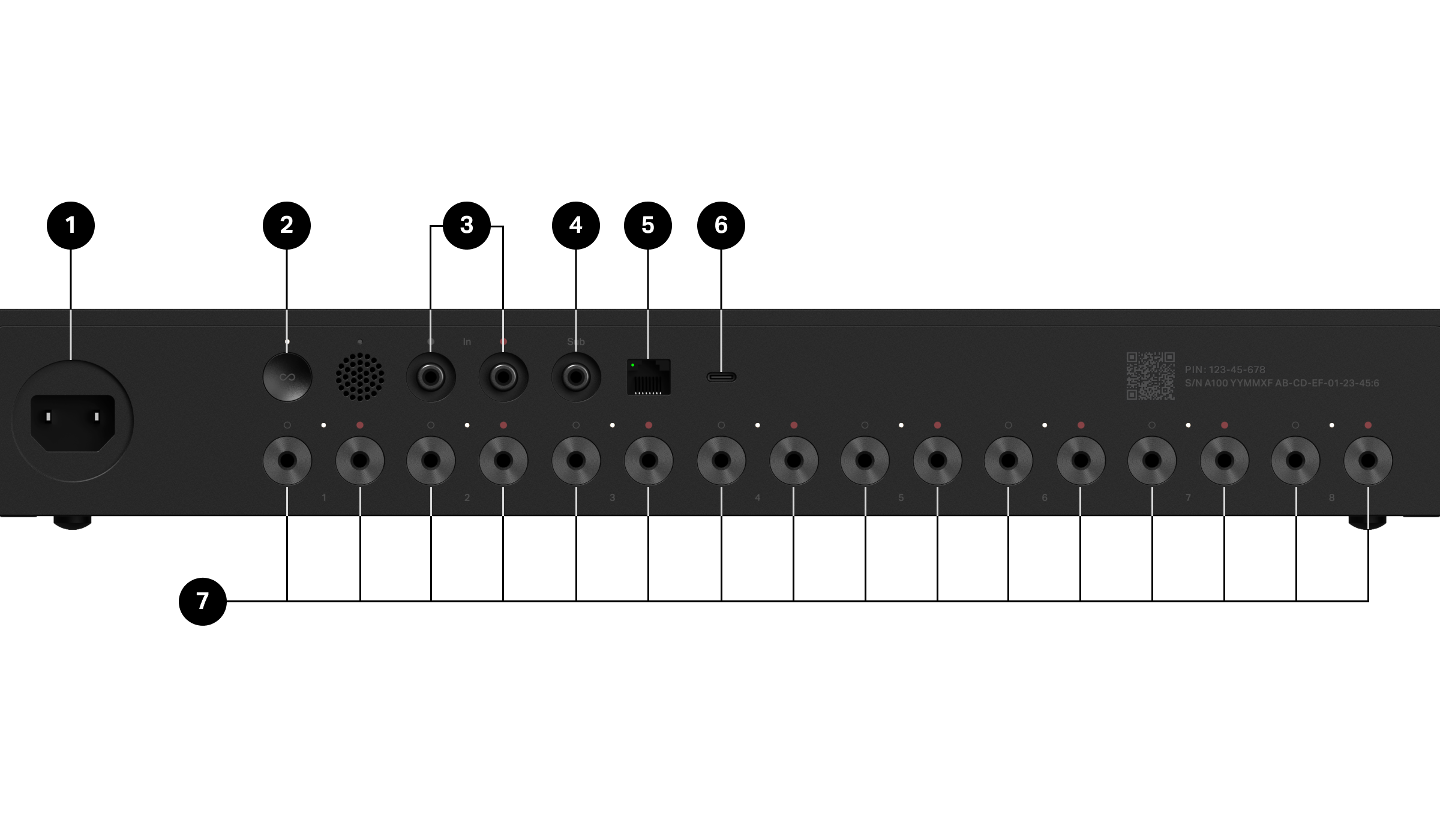
1 | AC power port | Use only the supplied power cord (using a third-party power cord will void your warranty). Note: Insert the power cord firmly. |
2 | Join button | Press to connect during setup. |
3 | Analog audio in | Use a standard RCA audio cable (not included) to connect Amp Multi's analog audio inputs to the outputs on another device, like a pre-amplified turntable or portable music player. |
4 | Subwoofer output | Connect a powered subwoofer to this output using a standard RCA cable (not included). The system will detect when a cable is connected to the subwoofer output. Note: If you disconnect your subwoofer, make sure to also disconnect the subwoofer’s cable from the Amp Multi output. |
5 | Ethernet port (RJ45) | (Optional) Use an Ethernet cable if you want to connect Amp Multi to a network switch instead of using WiFi. Ethernet is also recommended if you rack mount Amp Multi. |
6 | USB-C connector | Use Sonos Line-In Adapter (purchased separately) and a 3.5 mm cable to connect an additional analog audio input, like a pre-amplified turntable or portable music player. You can’t use it to connect to the network. |
7 | Speaker output connections | Use high-quality speaker wire to connect your passive speakers to Amp Multi. For the best sound and most reliable performance, we recommend using banana plugs. Amp Multi comes with custom banana plugs. It can also accommodate a straight wire connection with 10 to 18 AWG wire. |
Placement
You can set up Amp Multi in an electronics rack or place it anywhere with enough airflow in a home.
Rack mounted
- Amp Multi can mount perfectly in any standard-size electronics rack with the Amp Multi Rack Mount (sold separately).
- Amp Multi is 1.5U height without the Amp Multi rack mount, 2U height with the rack mount, and full rack width.
- We recommend adding 1U of active cooling for every 3 Amp Multis in a rack. You can generally mount 2 Amp Multi in a rack on top of each other without the need for active cooling. Closely examine the rack, space, and ventilation, as you may want to add active cooling regardless. For more information on heat dissipation, review the spec sheet.
Outside of a rack
- Place horizontally on a stable, level surface.
- Leave at least 4 inches (101 mm) of space on all sides, including above Amp Multi, and ensure there's adequate airflow to the area.
- Don’t place anything on top of the Amp Multi, including but not limited to books, decorations, speakers, and other amps.
Connect speakers and cables
1 | Make sure your speakers are compatible with Amp Multi:
| |
2 | Unscrew the cap from the banana plug to reveal the connection hole. | |
3 | Insert the stripped end of the speaker wire into the hole, then put the cap back on the banana plug to secure the connection. Note: Connect the red (+) and black (-) terminals from each speaker to the corresponding banana plugs and terminals on Amp Multi. Mismatching of polarities will result in weak central sound and a distorted sense of sound direction. | |
4 | Insert the banana plug into the proper speaker terminal on the back of Amp Multi. | |
5 | Repeat to install the other speaker wires. | |
6 | Connect the power cord and plug in Amp Multi. | |
7 | If you’re using the Amp Multi Rack Mount, we recommend connecting wired Ethernet for optimal network performance. |
Setup
Use the Sonos app to configure Amp Multi.
- Put all 8 outputs from an Amp Multi in a single zone, or distribute them however you want across up to 4 zones.
- A system can contain a maximum 32 zones or products. If a system only contains Amp Multis, you could add 8 Amp Multis with 4 zones each, 32 Amp Multis with 1 zone each, or a variation in between.
- When selecting outputs for a zone, selecting 2 outputs will automatically create a stereo pair. You can change that to Mono in Settings after you’ve completed setup.
You can set up zones with Amp Multi and additional products.
- Create large zones of passive speakers by combining outputs from up to 16 different Amp Multis.
- Add other eligible Sonos products to a zone after you’ve set up the Amp Multi by going to zone settings and editing the zone. Other products must also be set up on the system before they can be added to a zone.
- Connect a Sonos Sub 3, Sub 4, Sub Mini, or third-party sub by going to the zone settings and selecting Connect Sub. You can add a maximum of 1 sub per zone, and the zone can only contain outputs from a single Amp Multi.
To review the setup for an Amp Multi, go to the settings for a zone that contains at least 1 of its outputs, then select it from the list of products (Settings > Zone > Amp Multi). On the Amp Multi settings page, you can see how each output has been configured and enable or disable WiFi for the Amp Multi; WiFi is enabled by default.
Unused outputs
You don’t have to set up every output on Amp Multi right away. You can even hide them from Settings temporarily so they aren’t distracting or confusing.
To find hidden unused outputs, go to a zone that contains an output from that Amp Multi, then select it from the list of products (Settings > Zone > Amp Multi). You’ll see available outputs (i.e. unused outputs) at the bottom of the Amp Multi page, and can even add them to a new zone right there.
If you want to add unused outputs to an existing zone, go to System Settings, select the zone you want to add them to, and then select Edit Zone.
Install the ferrite clamp
A ferrite clamp is included in the box. If you’re connecting Ethernet, install it on the Ethernet cable before using Amp Multi to ensure compliance with EMC regulations.
- Open the ferrite clamp and remove the foam insert.
- If the clamp seems too large for the Ethernet cable you’re using, wrap the foam around the cable by removing the backing and placing the sticky side against the cord, as close to the Ethernet port on Amp Multi as possible.
- Place the clamp around the foam or Ethernet cable, as close to the Ethernet port on Amp Multi as possible.
- Close the clamp until it clicks.
Zones
Setting up zones helps you fill large spaces with sound. A zone is a new semi-permanent configuration for multiple speakers throughout a system. Zones can be a single room, half of a room, or even multiple rooms in a home or building. Currently, these products can be added to a zone in the Sonos app: Amp Multi, Era 100, Era 100 Pro, Era 100 SL, Five, One, and One SL. You can also add a sub to a zone that only contains a single Amp Multi.
Once a zone is created, all products added to it are controlled together as though they are a single item. This makes playing content to all the speakers in the same space easier, compared to giving them each a common name (e.g. Kitchen, Kitchen 2, Kitchen 3, etc.) and grouping them.
You can add a maximum of 16 products to a zone. Any number of outputs from a single amp counts as 1 product. A system can contain a maximum of 32 products or zones.
To ensure the best experience while using zones, we recommend setting up wired internet connections into each Sonos product. If using wireless connections (WiFi) instead, we recommend adding a maximum of 6 products per zone.
Use the output selector to temporarily group various zones and speakers together. When you ungroup, your zones will stay intact.
Set up a zone
Zones can be a single room, half of a room, or even multiple rooms.
- Go to Settings
 .
. - Choose a compatible room, portable, or headphone (see the above list of compatible products).
- Select Products, and then select + Set Up Zone to get started.
Speakers remain in a zone until you Edit Zone or Separate Zone in Settings .
Manage, edit, and separate your zones
After a zone is created, you can change the speakers in a zone or remove a zone altogether.
- Go to Settings and select a zone.
- Under Products, select either Edit Zone to add or remove speakers in the zone or Separate Zone to disconnect all speakers in the zone.
Identify speakers in a zone
If you lose track of which speakers are in your zone, you can check them by going to System Settings, selecting the zone, and reviewing the product list. In the app, speakers in a zone have a speaker icon next to them within Settings. You can press that icon to have it play a short sound and flash its LEDs so you can identify its physical location.
Zone settings
Optimize Sonos speakers | Allows Amp Multi to recognize Sonos Architectural speakers, then applies custom tuning and DSP to provide more robust sound with a more even frequency response, optimizing system performance and ensuring stable operation. |
Gain trim | Adjust the relative volume of each speaker in a zone to balance the sound. |
EQ | Change the bass, treble, and loudness of all the speakers in the zone to suit your personal preferences. |
Sub audio | When you add a Sonos or third-party sub to a zone with Amp Multi, use sub audio to adjust the sound as needed.
|
Stereo/mono | When only 2 outputs are added to a zone, the speakers connected to Amp Multi will play audio in stereo by default. You can change this sound setting to play in mono instead. When more than 2 outputs are added to a zone, the speakers connected to Amp Multi will play in mono. |
Volume limit | Set the highest volume the products in this zone can reach. The volume slider in Now Playing will adjust to match it. For example, if you set the limit to 50%, the products won’t play louder than 50%, even at maximum volume. |
Line-in | You can connect an audio device, like a CD player or turntable (with a built-in phono preamp) to any Sonos product that has a line-in port.
|
Front status light | Turn off this setting to turn off the light on the front of Amp Multi and all the lights of other products in the zone. If an Amp Multi has outputs in multiple zones, this setting will impact all of the zones that include the Amp Multi and the other products in those zones. For example, let’s say you have 2 zones with outputs from an Amp Multi — Kitchen and Living Room. Then, you add 2 Era 100s to the Living Room zone. Now, you turn off the Front Status Light setting for Kitchen. Since the Amp Multi is also in Living Room, it will also turn off Front Status Light setting in the Living Room zone, which means the Era 100s status lights will also be turned off. |
Back status light | Turn off this setting to turn off all the lights on the back of Amp Multi. |
Touch controls | There are no touch controls on Amp Multi. You will only see this setting in your zone if it also contains another product that does have touch controls, such as an Era 100. |
ProTune
For advanced tuning needs, installers can use ProTune to optimize the sound for the placement and room acoustics of any low-impedance passive speakers connected to Amp Multi. It offers a comprehensive set of manual controls, including a 10-band parametric EQ and adjustable gain and delay offsets.
ProTune is an advanced tuning tool and should only be used by trained professionals. Sign in to protune.sonos.com with the account information for the system you want to modify.
Note: If you’re using Sonos Architectural speakers, you should complete the Optimize Sonos Speakers flow using the Sonos app before tuning with ProTune.
Amp Multi tuning
Gain trim | Adjust the relative volume of each speaker in a zone to balance the sound. The gain trim range for Amp Multi outputs is -15–5 dB. If gain trim is adjusted in ProTune and the Sonos app, the results are cumulative. For example, if gain trim is set to +1 dB in ProTune and -1 dB in the Sonos app, the net result is a gain trim of 0. |
Delay | Ensures sound from multiple speakers reach listeners at the same time, creating clear sound across larger spaces. The delay range for Amp Multi outputs is 0–50 ms. |
High pass | Filter to prevent damage from speakers producing frequencies below their specification at higher volume levels. The high pass filter range for Amp Multi outputs is 15–100Hz. The high pass filter should be set before adjusting parametric EQ. |
Parametric EQ | Use the 10-band parametric EQ for precise tuning with ±15dB gain, Q, and frequency control. Option for high-shelf, low-shelf, and bell filter types. If EQ is adjusted in ProTune and the Sonos app, the results are cumulative. This enables installers to finely correct sound based on the acoustics of the space, while also allowing owners to make additional adjustments that suit their tastes. |
Additional speaker tuning
Gain trim | Adjust the relative volume of each speaker in a zone to balance the sound. The gain trim range for subs is -15–3 dB. If gain trim is adjusted in ProTune and the Sonos app, the results are cumulative. For example, if gain trim is set to +1 dB in ProTune and -1 dB in the Sonos app, the net result is a gain trim of 0. |
Delay | Ensures sound from multiple speakers reach listeners at the same time, creating clear sound across larger spaces. The delay range for Sonos speakers is 0–50 ms. |
Specifications
Audio | |
Amplifier | Class-D digital amplifier with GaN and PFFB |
FTC power output rating | 8 output channels, 125 watt each @ 8Ω (all channels driven) |
Speaker connections | Banana plugs (8) |
Minimum impedance | 2.67Ω with Sonos Architectural speakers |
Line-in sources supported | Analog line-level signal via built-in RCA inputs and optional USB-C to 3.5mm adapter |
Analog audio input | 2 x RCA inputs -10dB (into any zone) |
USB-C analog audio input | 44.1 kHz / 16 bit (stereo into any zone) Requires Sonos Line-In Adapter |
Subwoofer connections | 1 RCA output -10dB, configurable to output from one zone, and 1 Sonos Sub per zone |
Damping factor | >400 (ref. 8 ohms, 20 Hz–1 kHz) |
Total harmonic distortion | 0.005% at 2.83Vrms-15Vrms |
Frequency response | ±0.5 dB, 15 Hz - 20 kHz |
Channel separation (Crosstalk) | -100dB at 1 kHz 2.83Vrms -80dB at 10 kHz 2.83Vrms |
Signal-to-noise ratio | 114dB ref 125W into 8-Ohm |
Integrated content streaming | Amazon Music, Apple Music, Cloud Cover Music, Mood Media, Sonos Radio, Soundtrack Your Brand, Spotify, and many more. For a complete list, please visit: support.sonos.com/services |
Details & Dimensions | |
Product dimensions (W x H x D) | 17.2 x 2.52 x 10.44 in (436.8 x 64.5 x 265.2 mm) |
Net weight | 11.17 lb (5.06 kg) |
Shipping weight | 16.56 lb (7.51 kg) |
Colors | Black |
Finish | Matte |
LEDs | Front: Device status Rear: Device status, output status (x8), RJ45 status light |
Operating temperature | 32° to 95° F (0 to 35° C) |
Storage temperature | -4° to 122° F (-20° to 50° C) |
Humidity range | Operates in non-condensing humidity 10–85% |
Power & Connectivity | |
Power supply | Auto-switching 100-240V 50/60 Hz 10A AC universal input |
Power consumption | 5.4 W (idle) 180 W (all channels driven at 1/8 output power, 8Ω) |
Wired Networking Interface | 100BaseTX, Ethernet RJ45 |
Wireless Networking Interface | Compatible with WiFi 6. Connect to WiFi with any 802.11a/b/g/n/ac/ax 2.4 GHz/5 GHz broadcast-capable router. |
CPU | Quad Core 4xA55 1.9 GHz |
Apple AirPlay | Works with AirPlay 2 on Apple devices iOS 11.4 and higher. |
Direct Streaming Formats | Apple AirPlay 2, Spotify Direct Control |
What's in the box? | |
Product | 1 Amp Multi |
Banana plugs | 8 custom Sonos banana plugs |
Ferrite clamp | 1 ferrite clamp |
Power cable | AC power cord |
Documentation | Quickstart Guide (printed on the box) and legal/warranty information |
Requirements | |
Passive speakers | Passive speakers with speaker wire |
Internet connection | Access to the internet |
Sonos app | The latest generation of the Sonos app running on a compatible device |
Safety and compliance |
Important safety information
- Read these instructions.
- Keep these instructions.
- Heed all warnings.
- Follow all instructions.
- Do not use this apparatus near water.
- Clean only with dry soft cloth. Household cleaners or solvents can damage the circuitry or finish on your Sonos products.
- Do not block any ventilation openings. Install in accordance with the manufacturer’s instructions.
- Carefully evaluate the placement—including rack, space, and ventilation—as you may need to add active cooling solutions.
- Do not install near any heat sources such as radiators, heat registers, stoves, or other apparatus that produce heat.
- Protect the power cable from being walked on or pinched, particularly at plugs, convenience receptacles, and the point where they exit from the apparatus.
- Only use attachments/accessories specified by the manufacturer.
- Unplug this apparatus during lightning storms or when unused for long periods of time.
- This product does not have any user-serviceable parts. Do not open or disassemble or attempt to repair it or replace any components. Refer all servicing to Sonos qualified service personnel. Servicing is required when the apparatus has been damaged in any way, such as power-supply cable or plug is damaged, liquid has been spilled or objects have fallen into the apparatus, the apparatus has been exposed to rain or moisture, does not operate normally, or has been dropped.
- The Mains plug should be readily available to disconnect the equipment.
- Warning: To reduce the risk of fire or electric shock, do not expose this apparatus to rain or moisture.
- Do not expose apparatus to dripping or splashing and do not place objects filled with liquids, such as vases, on the apparatus.